
Appointment Booking
- Go to the Appointment Calendar from the Appointments module, as highlighted in the image below.
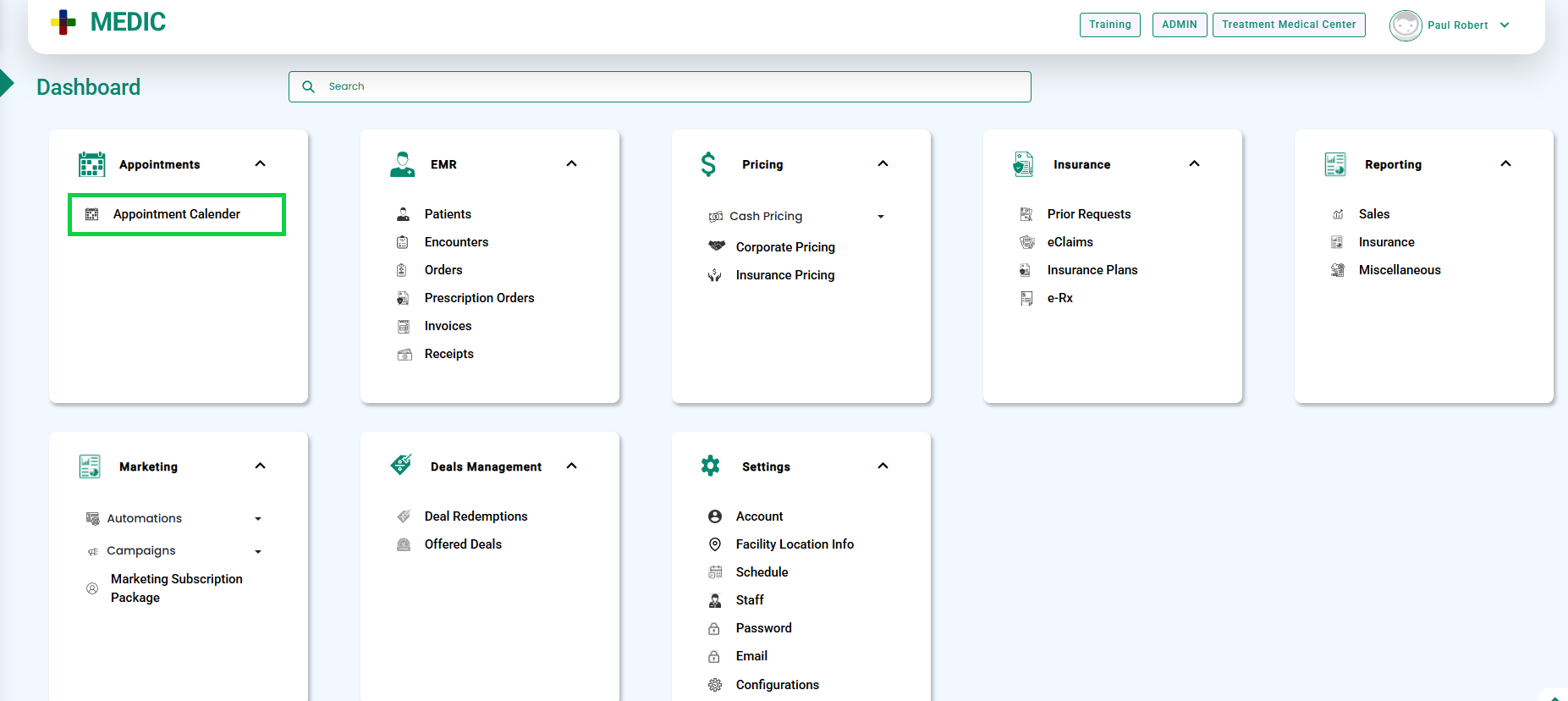
- The Appointment Calendar screen will open.
- Click the required time slot to book a video consultation, as shown in the image below.
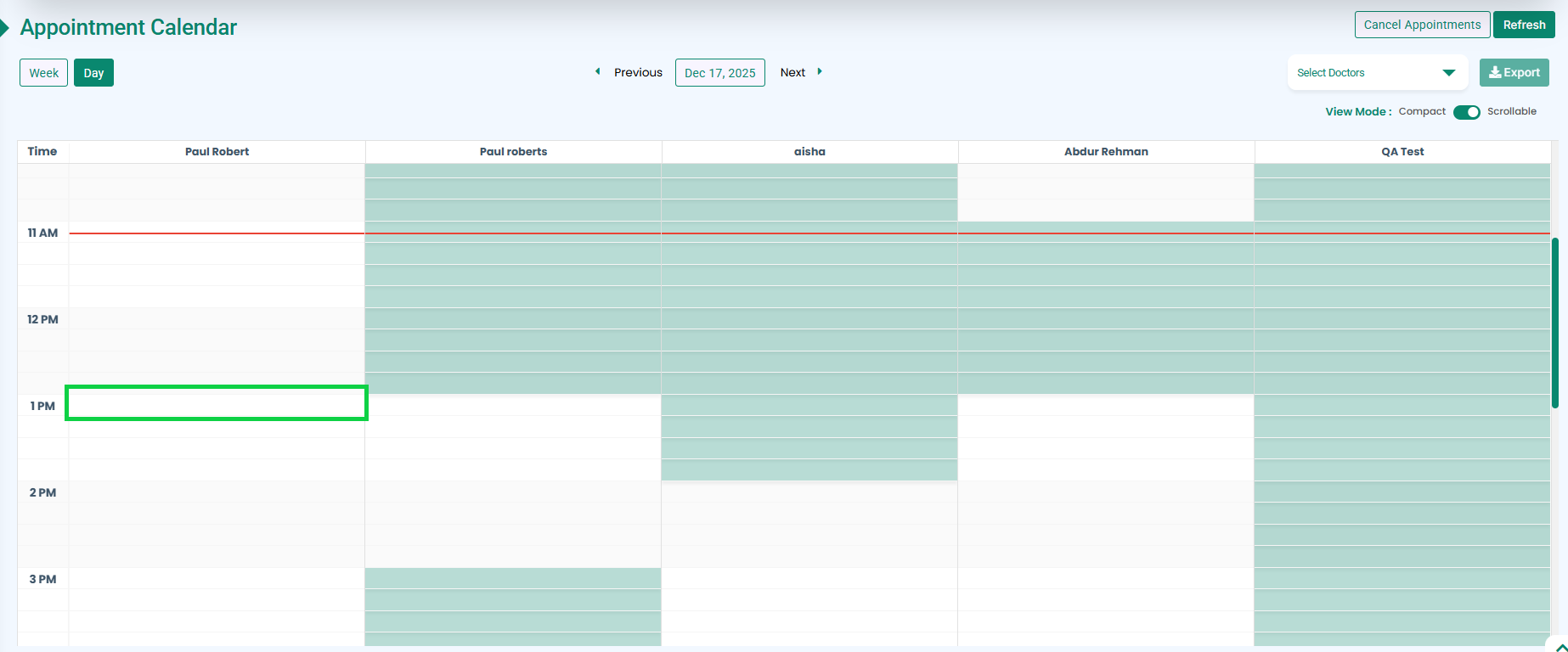
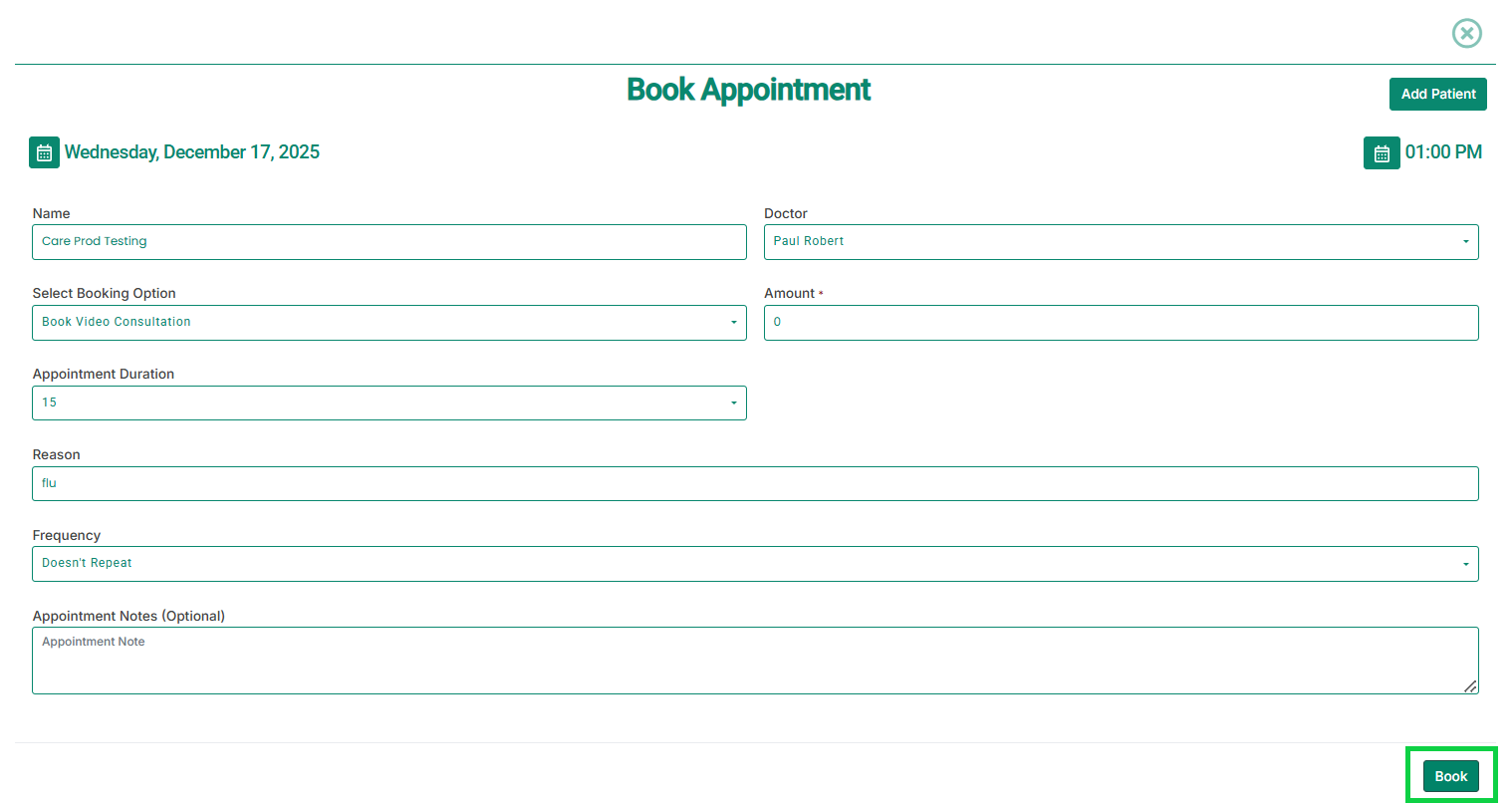
- The Book Appointment modal will open, as shown below.
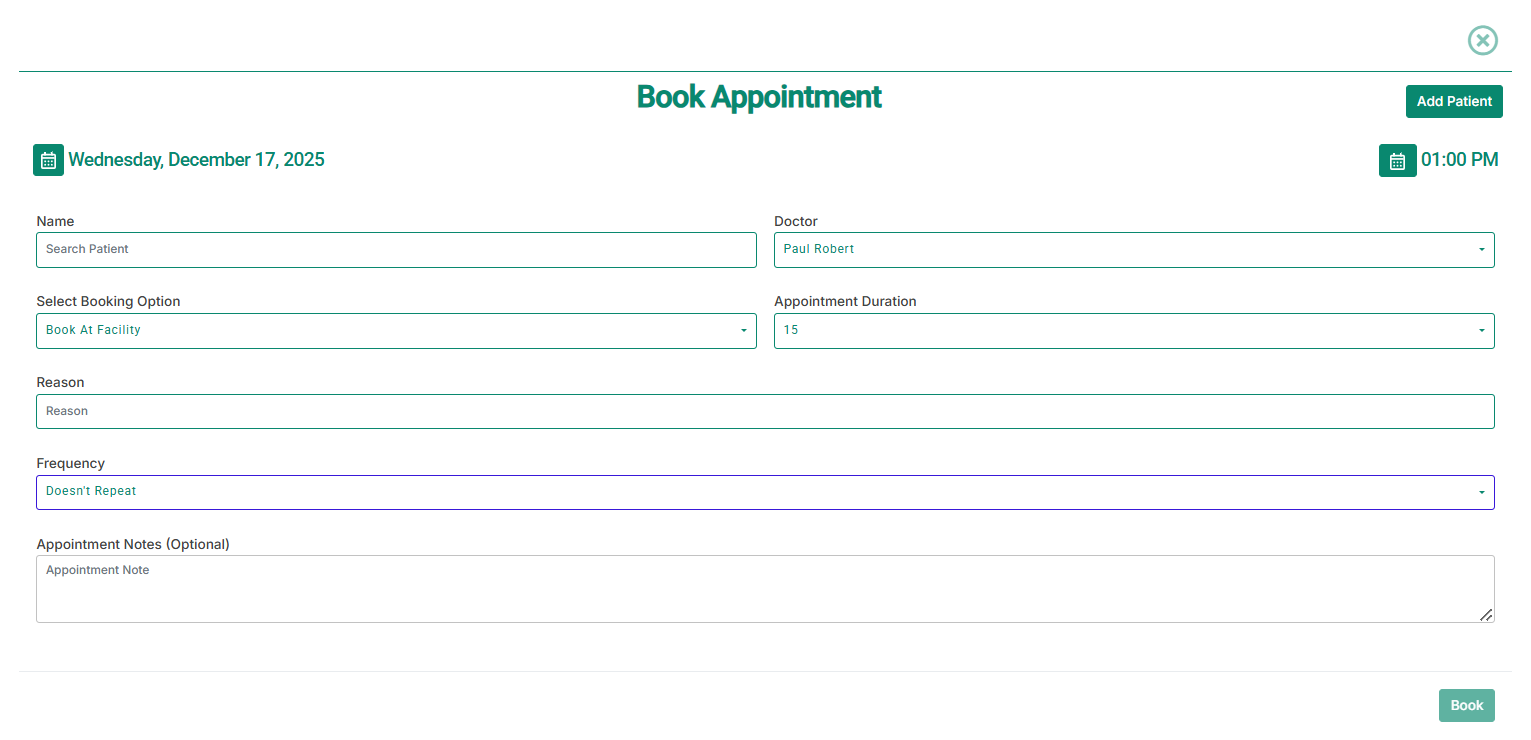
- Select the Patient Name.
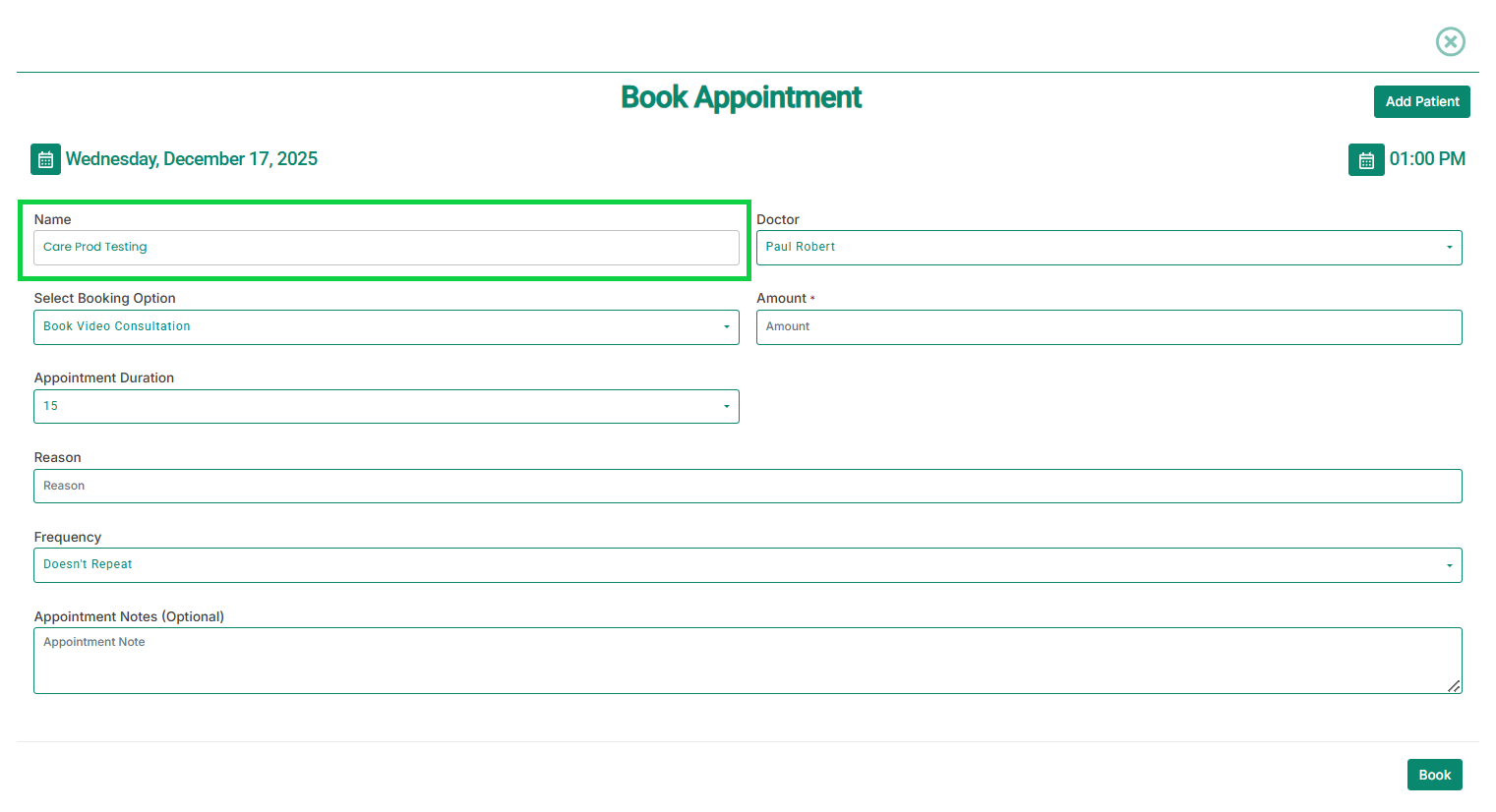
- From the booking option dropdown, select Book Video Consultation, as shown in the image below.
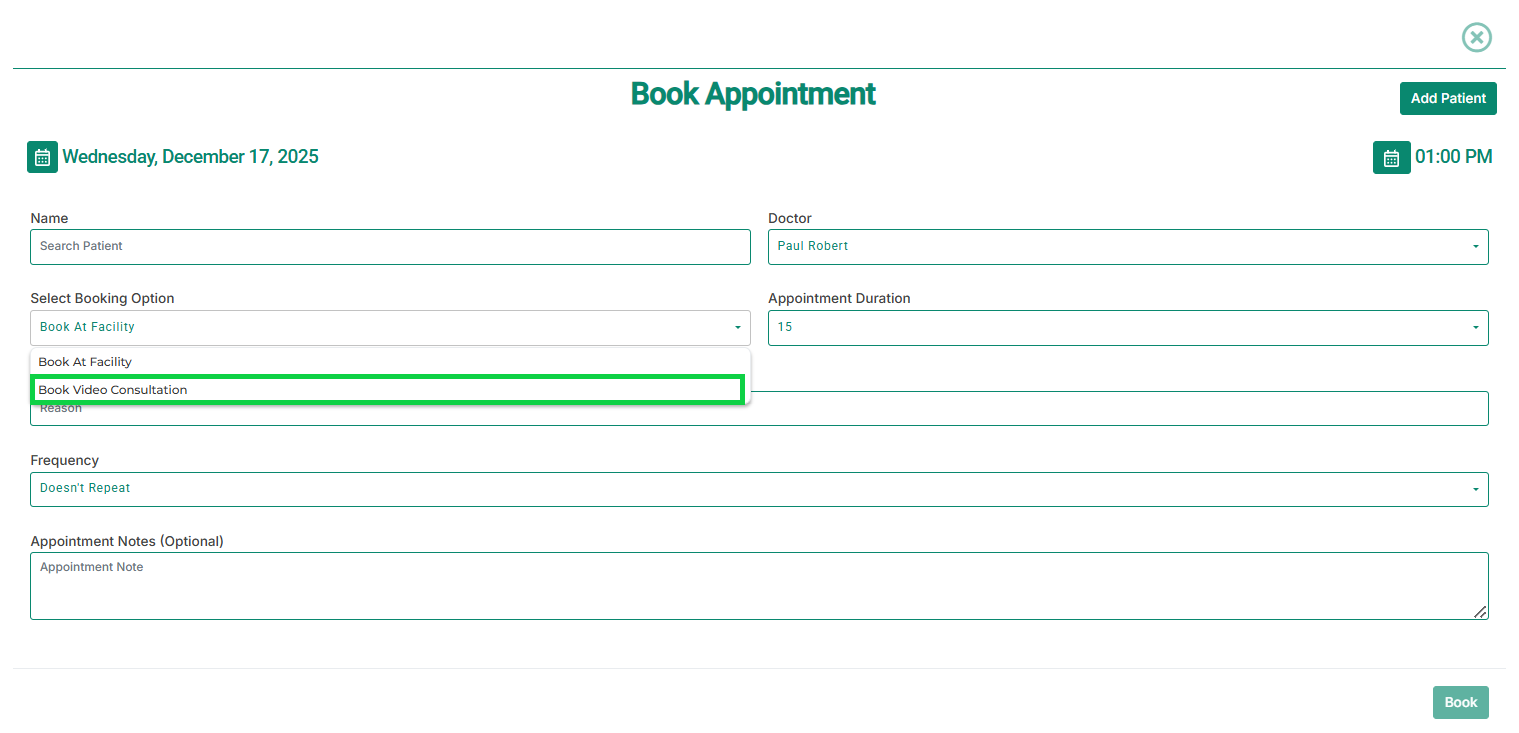
- If the patient’s email address is not added to the patient profile, an Email field will appear, as highlighted in the image below.
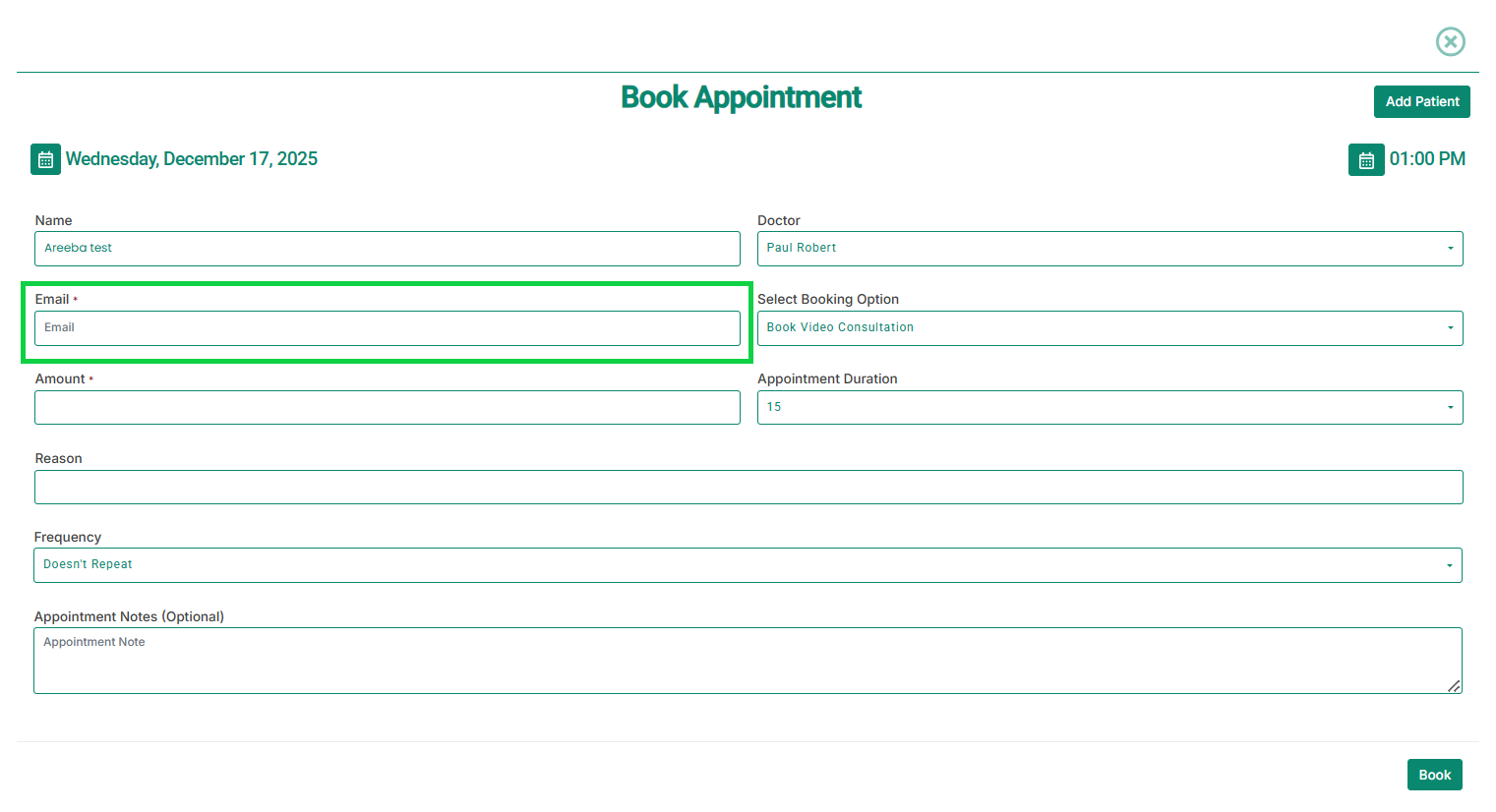
- Enter the email address.
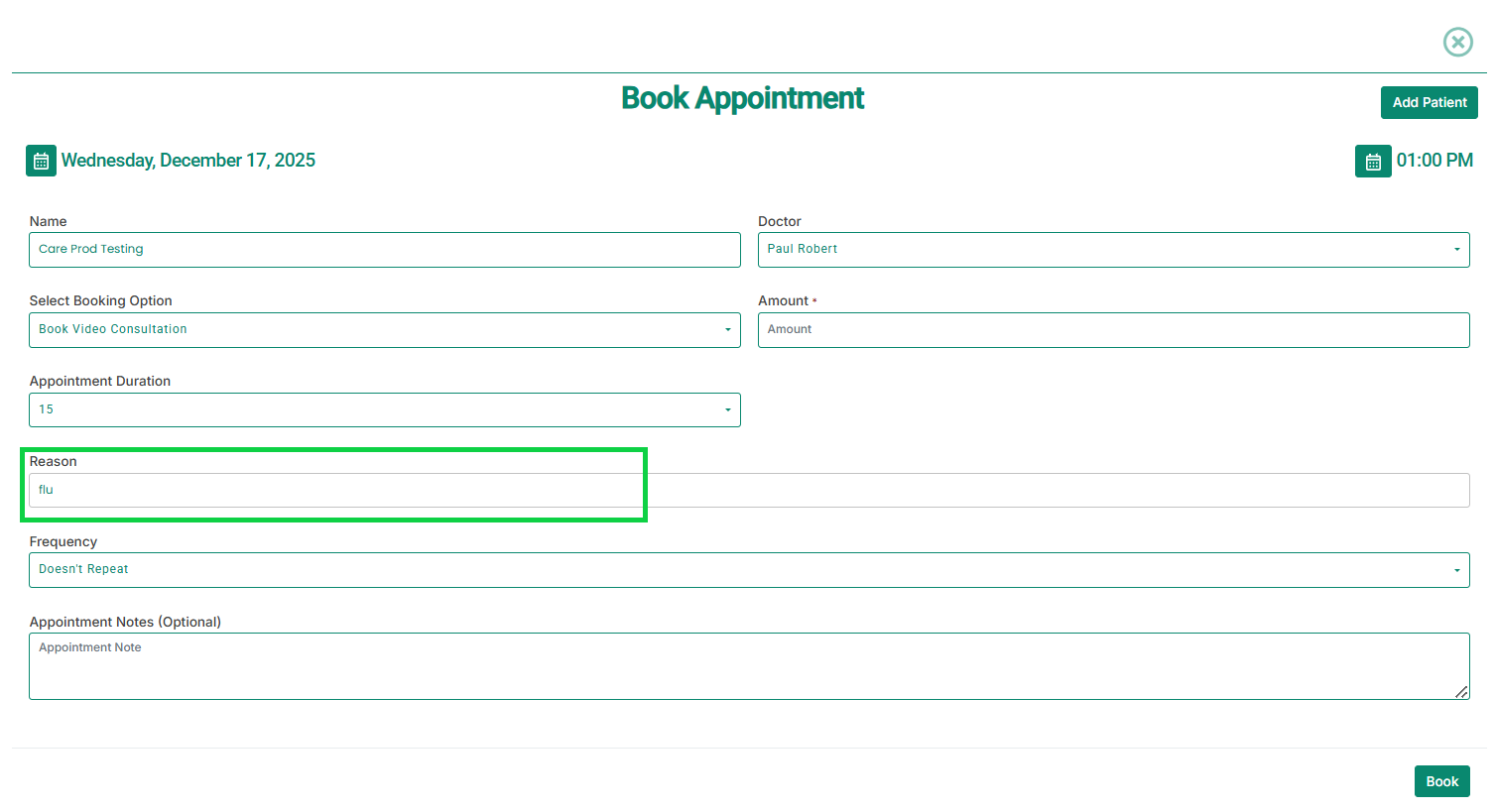
- Enter the Reason for the consultation.
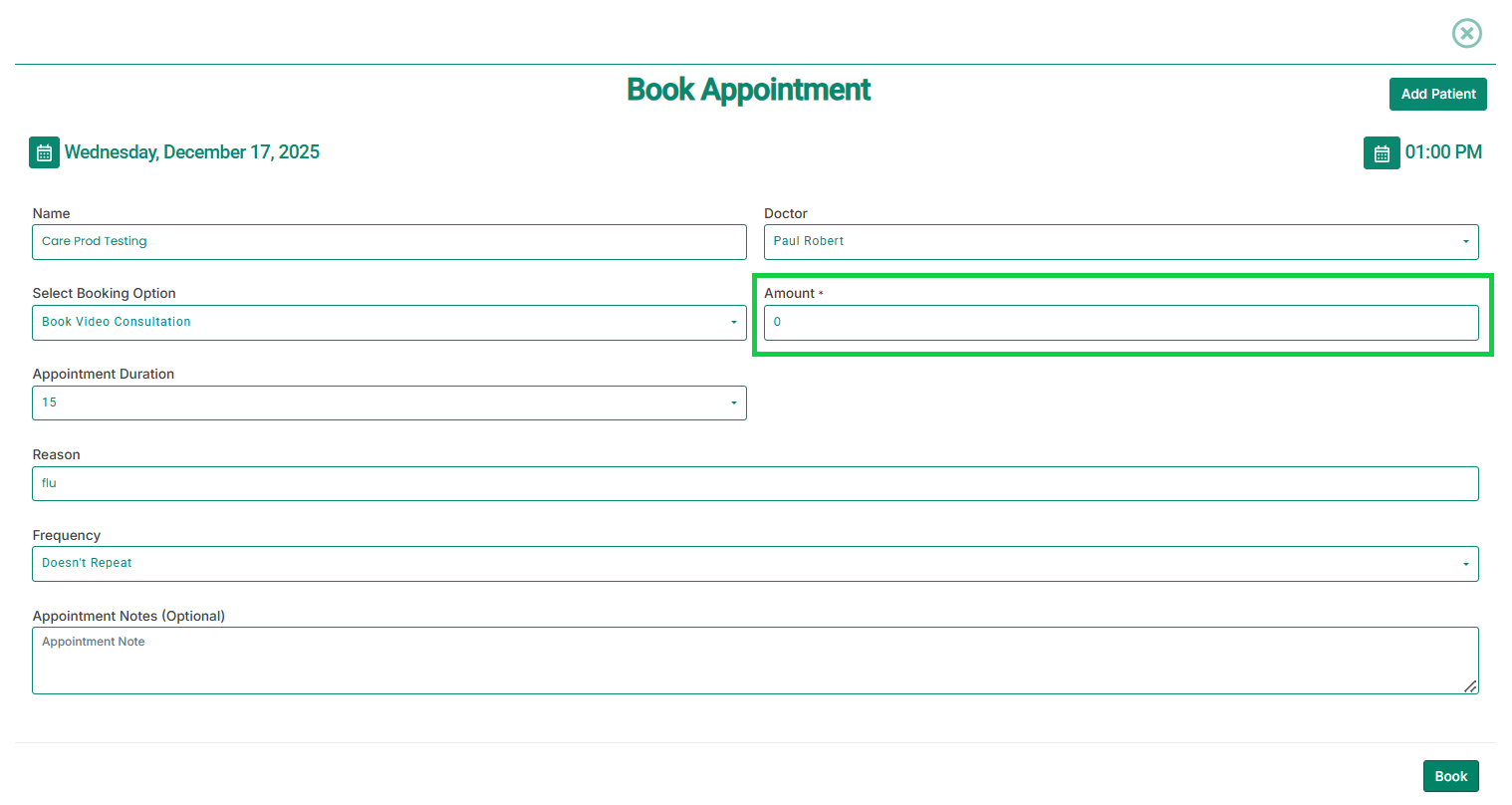
- Enter the Amount as required. For follow-up appointments, you may enter 0.
- Click the Book button, as highlighted in the image below.
- The appointment will be booked, as shown below.
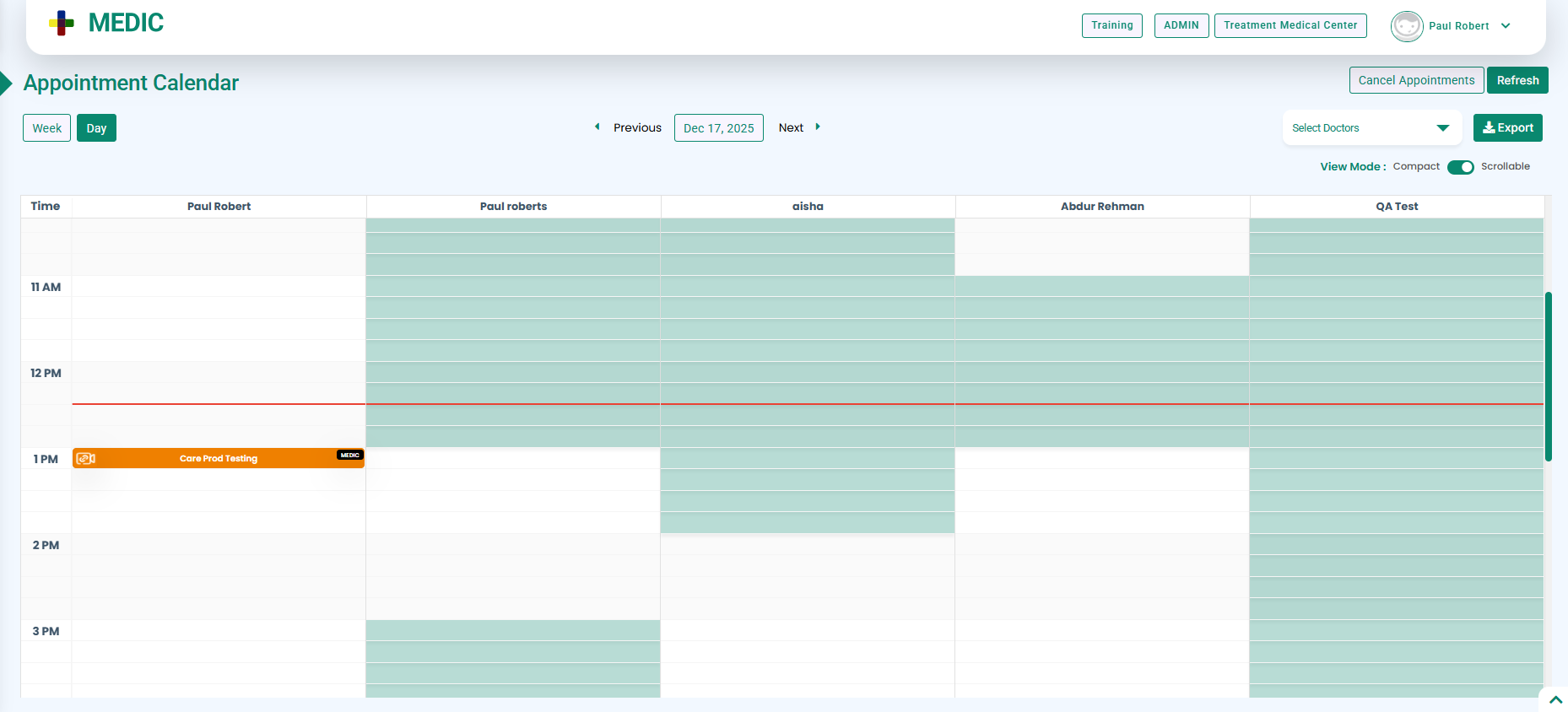
- Click the booked appointment to view its details, as shown below.
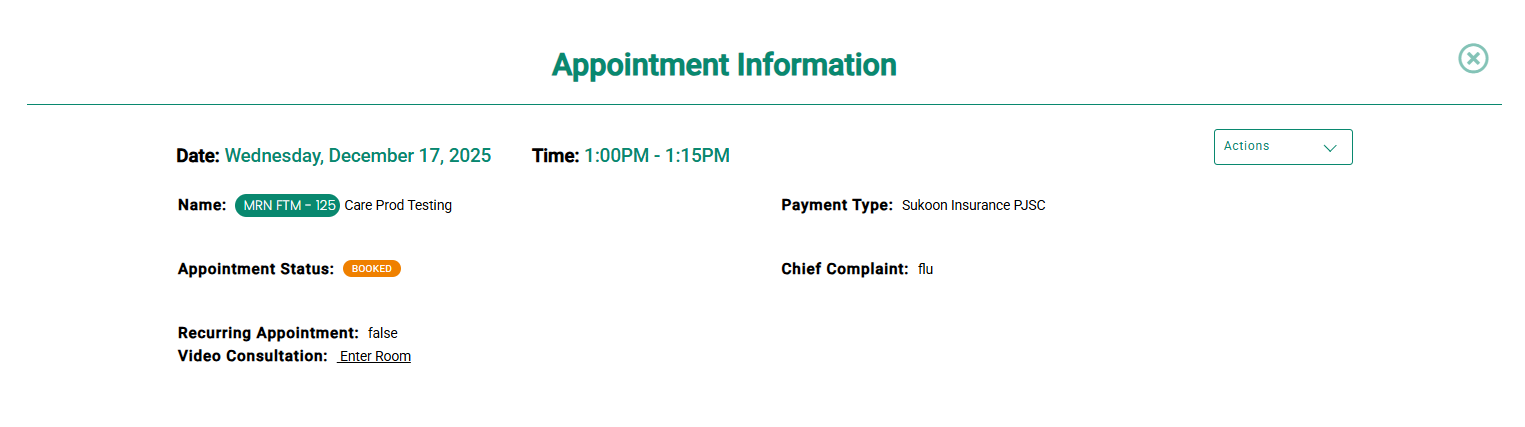
- The appointment cannot be queued from the Appointment Information modal until the patient completes the payment from Care, as shown below.
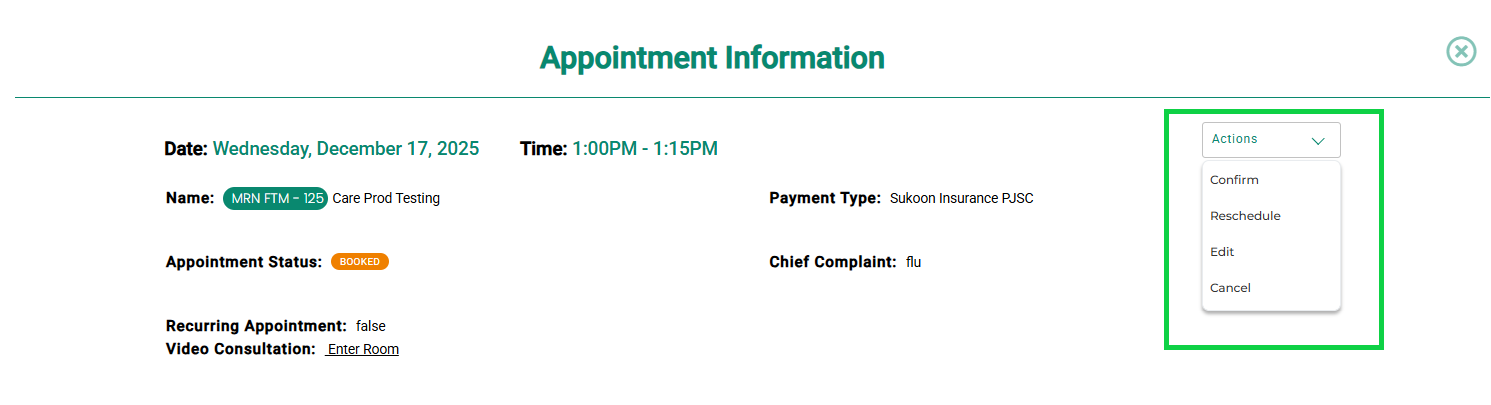
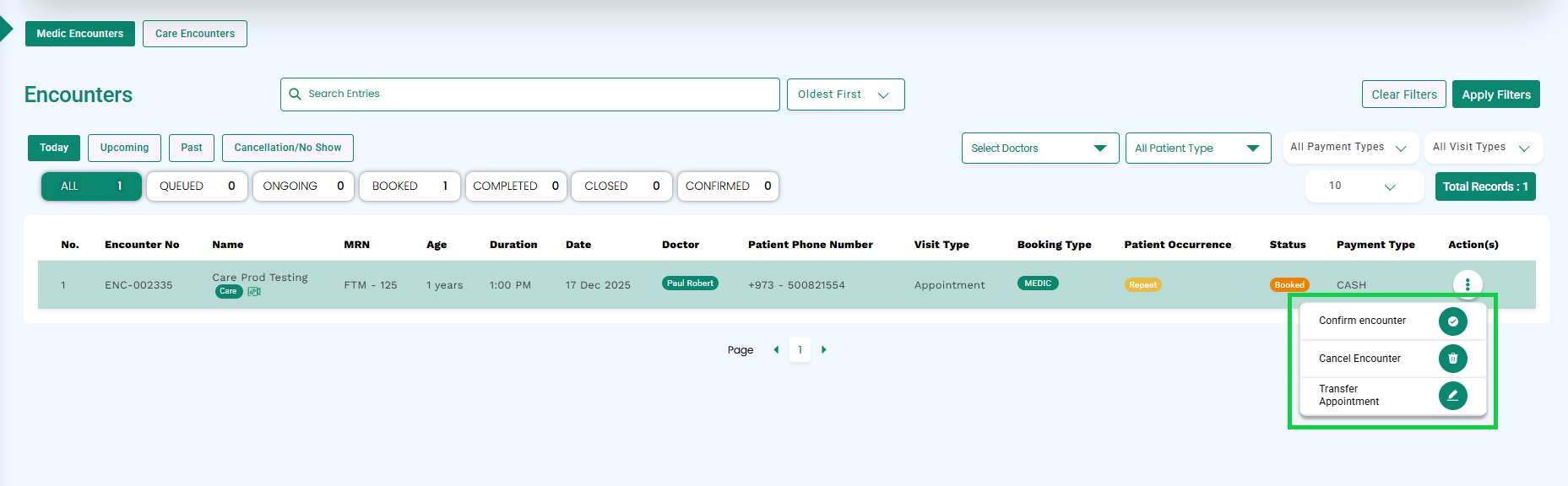
- Similarly, the appointment cannot be queued from the Encounters screen until payment is completed, as shown below.
How the Patient Completes Payment from Care
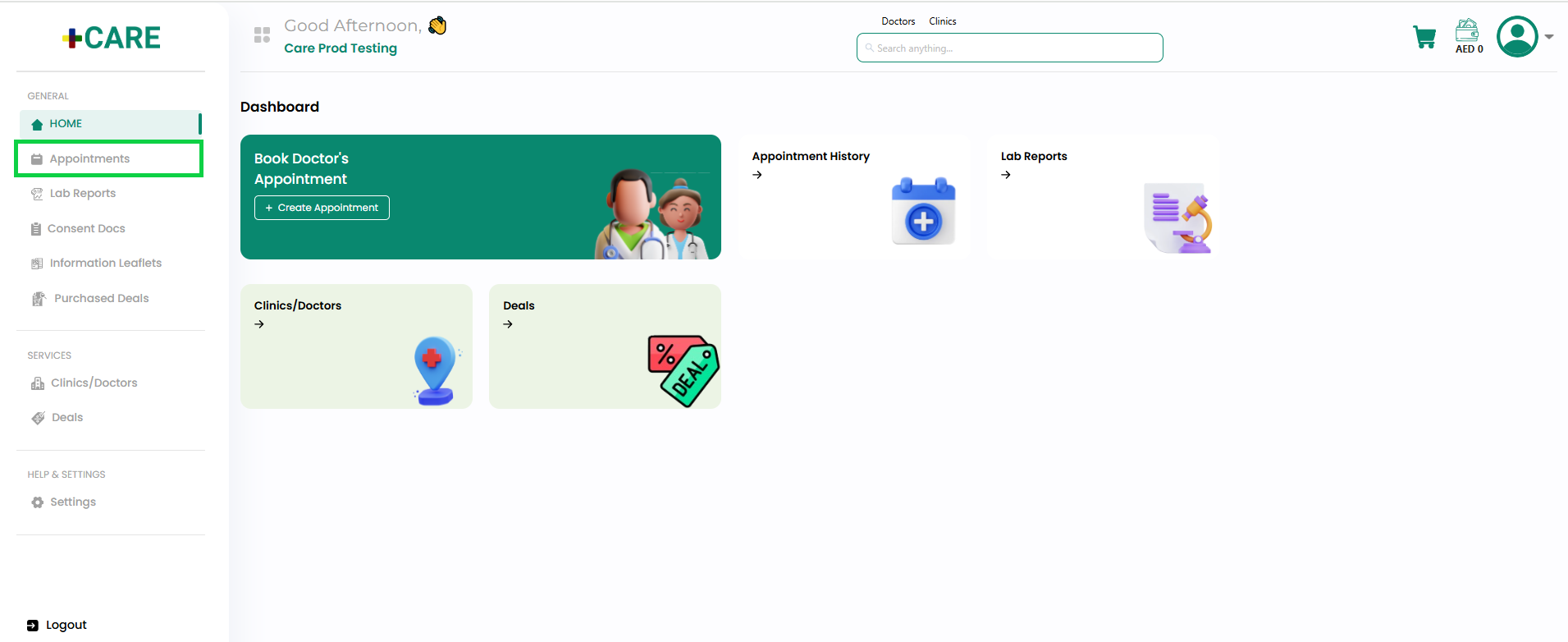
- Log in to the Care Portal.
- From the left-side panel, click Appointments, as highlighted in the image below.
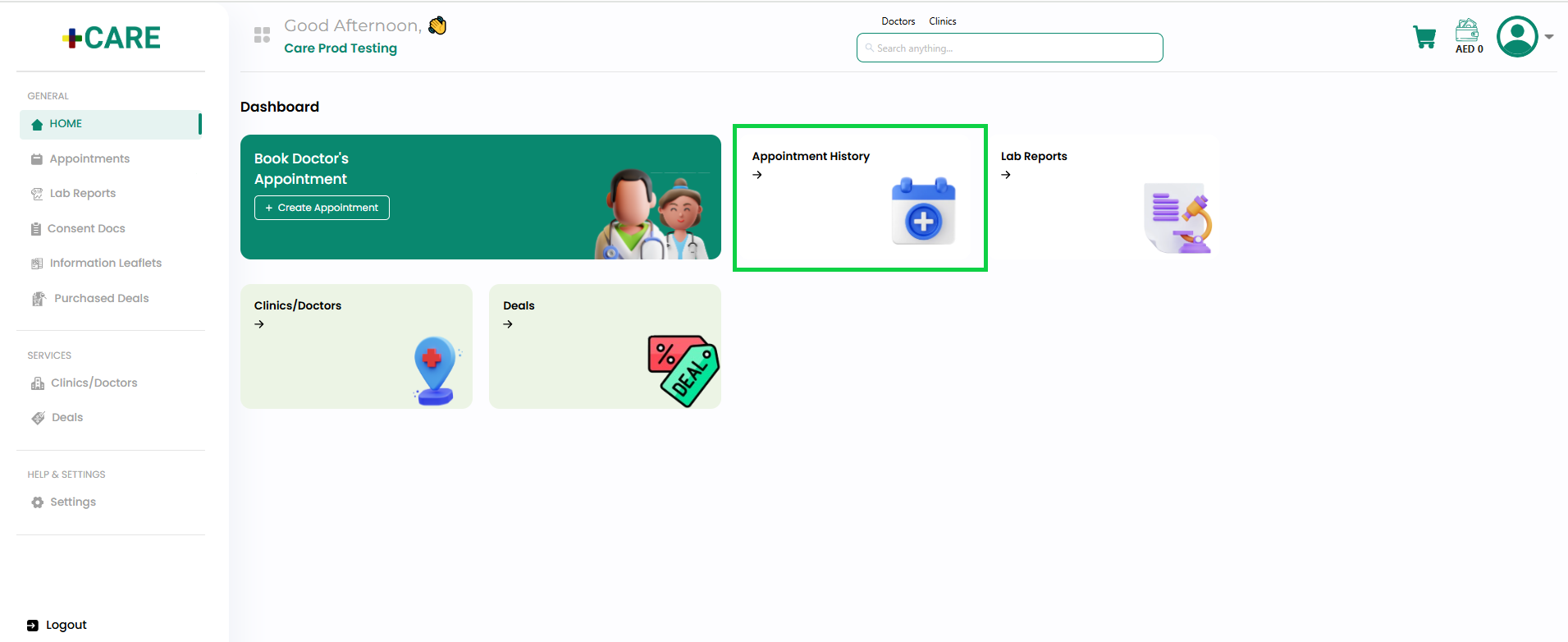
- Alternatively, click the Appointment History button from the Dashboard, as shown in the image below.
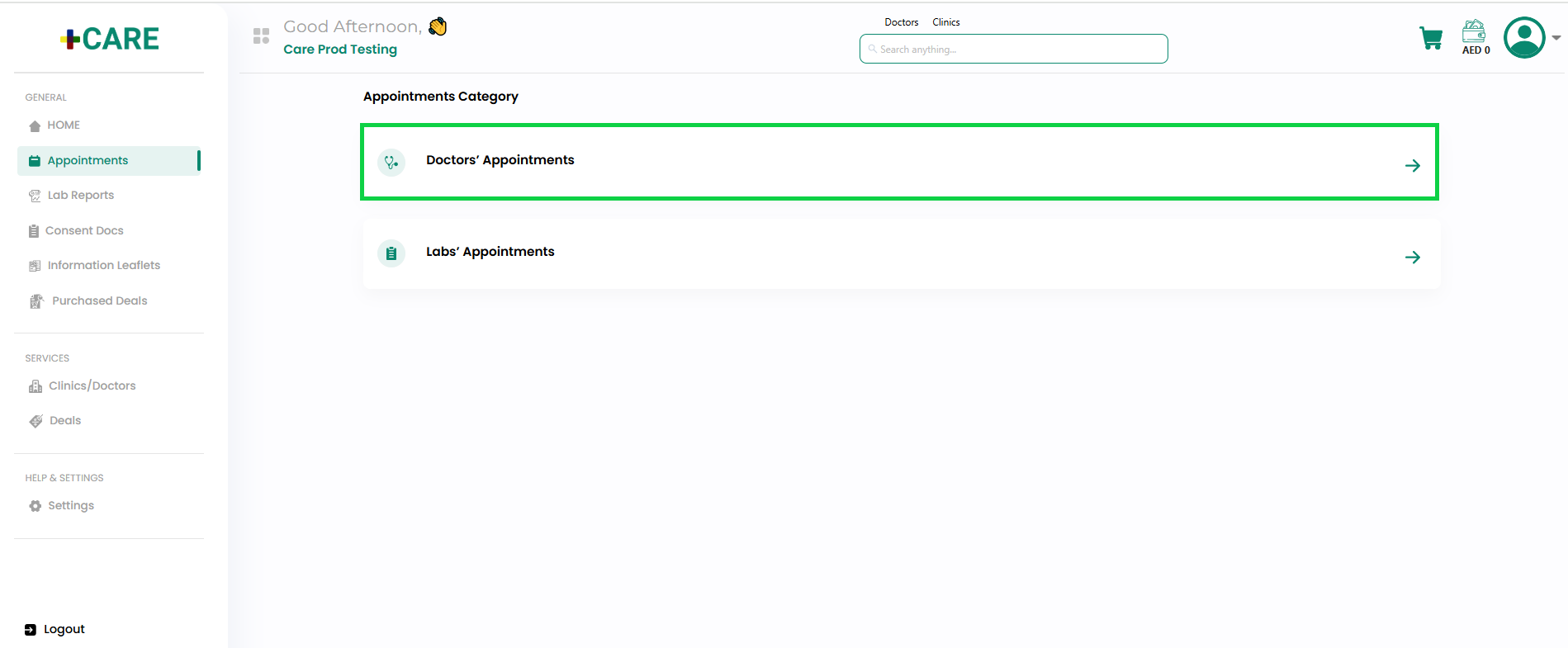
- The Appointments Category screen will open.
- Click Doctors’ Appointments, as highlighted in the image below.
- The Doctors’ Appointments screen will open.
- The booked appointment will appear with a Pay button, as shown below.
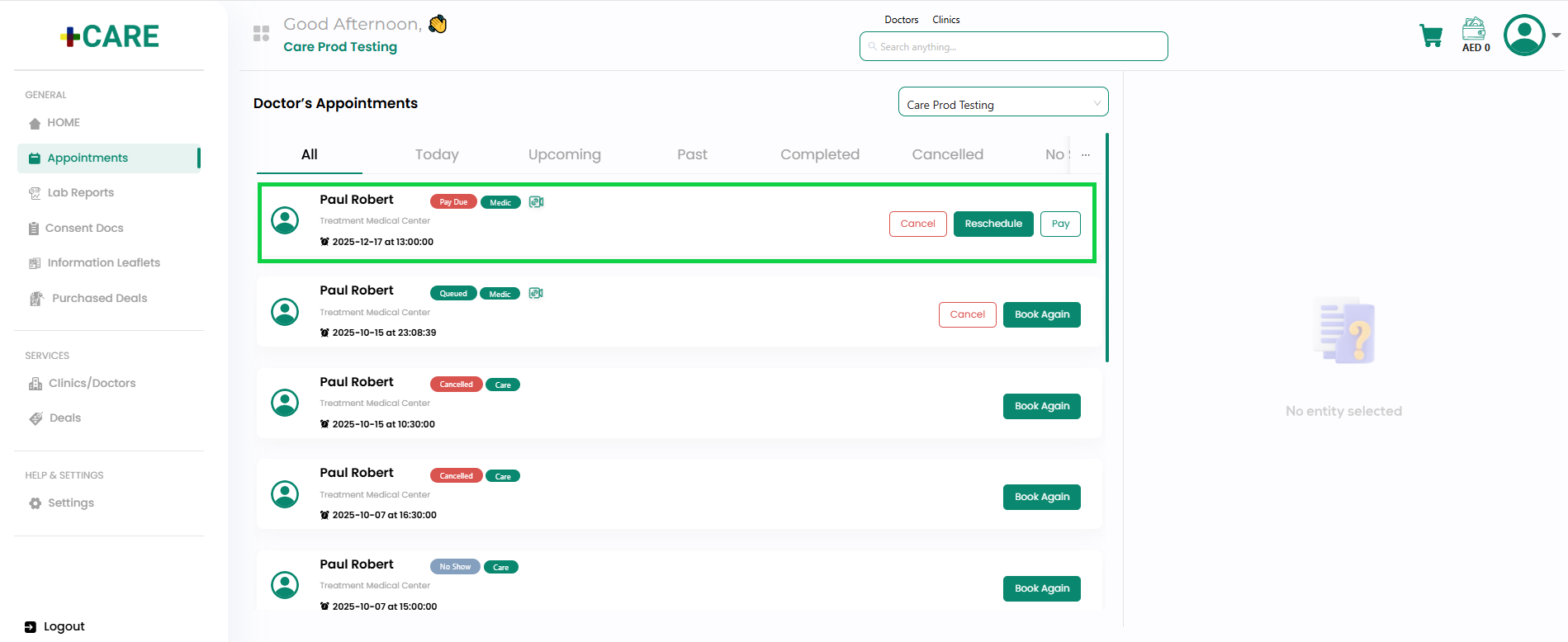
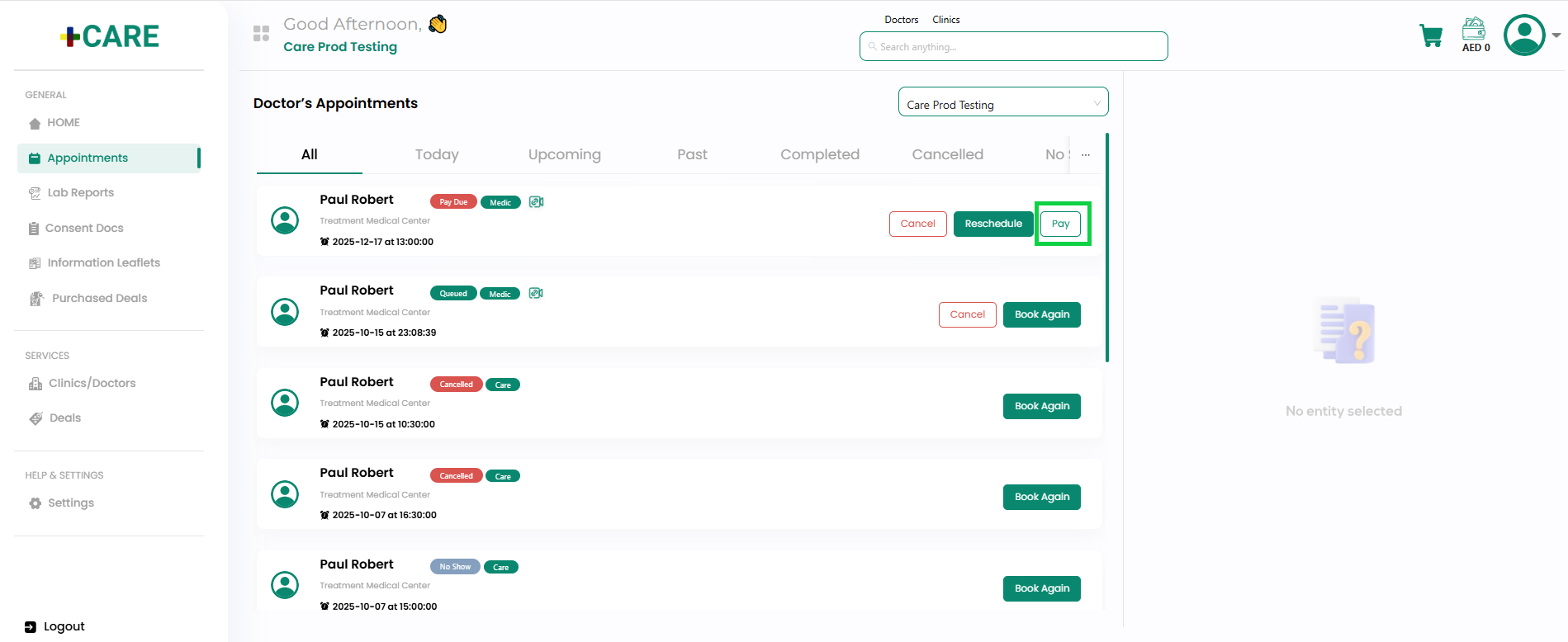
- Click the Pay button, as highlighted in the image below.
- A confirmation modal will open, as shown below.
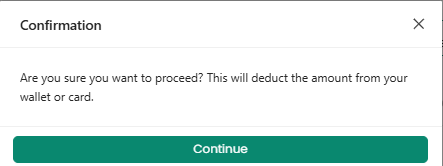
- Click the Continue button.
- A modal will open displaying the appointment details and payable amount, as shown below.
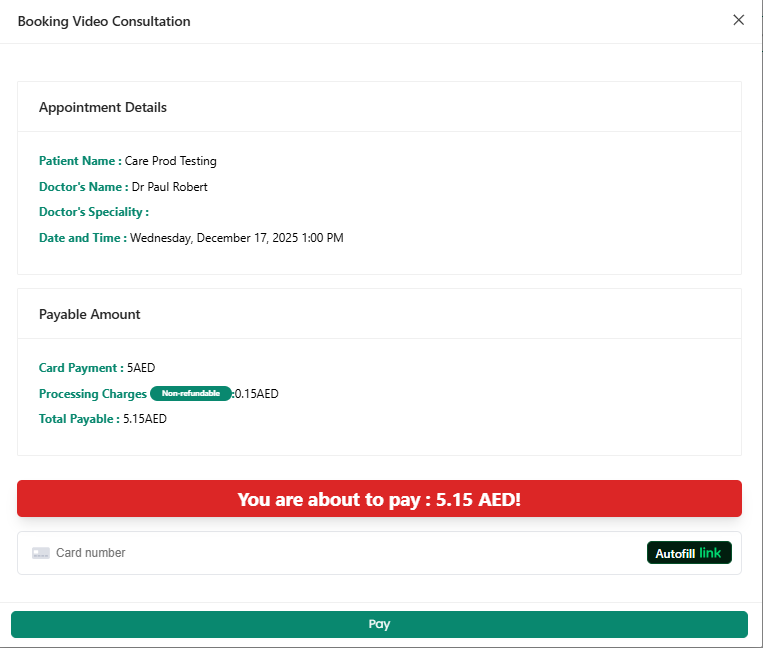
- Enter the Card Number. Once you start entering the card number, the Card Expiry and CVC field will appear in the same row, as highlighted in the image below.
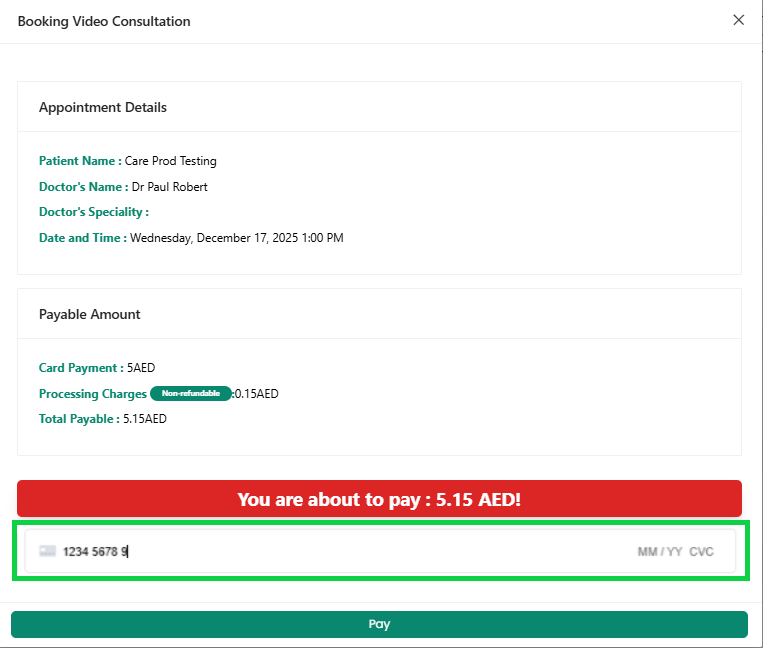
- Enter the Card Expiry, CVC number and click the Pay button.
- A confirmation modal will appear.
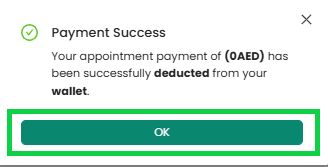
- Click the OK button, as highlighted in the image above.
- The appointment will be booked successfully and can now be queued from Medic.


