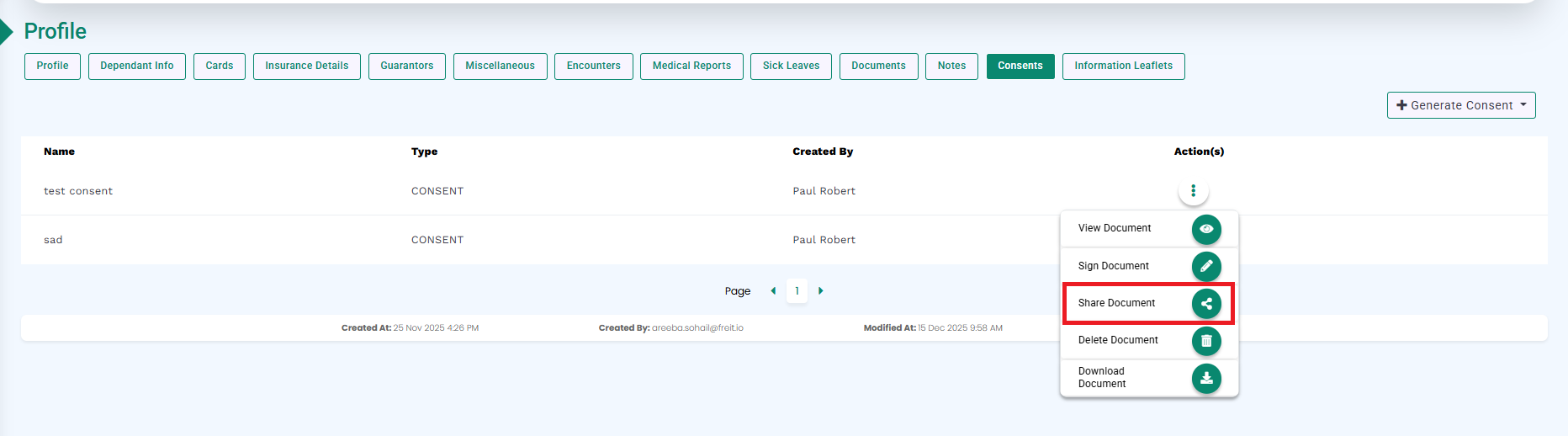
From the Actions column, select Share Document, as highlighted in the image below.
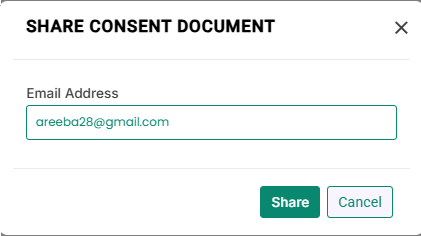
The Share Consent Document modal will open.
If the patient’s email address is already available in the patient profile, it will be displayed by default in the Email Address field, as shown in the image below.
If the patient wants to receive the consent on a different email address, staff can update the email address in this field.
Changing the email here will not update the email address in the patient profile.
Click the Share button to send the consent link.
The consent link will be sent to the provided email address. The patient can open the link, sign the document, and submit it.
Once submitted, the signed consent document will automatically appear in Medic.
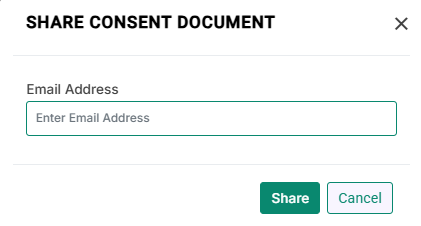
If the patient’s email address is not available in the patient profile, the Email Address field will be empty, as shown in the image below. In this case, staff must enter the patient’s email address. The entered email address will be saved to the patient profile.