Go to the Prescription Orders screen as described earlier in the Pre-requisites section.
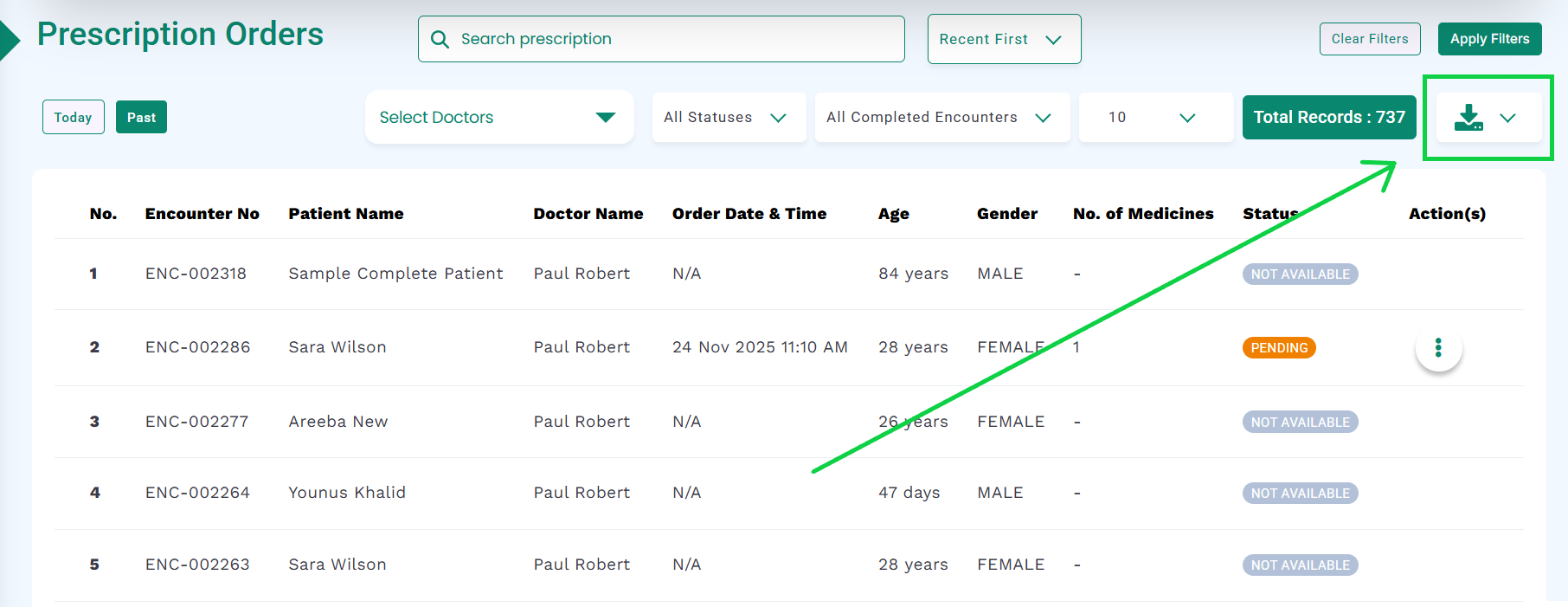
Click the Export button, as highlighted in the image below.
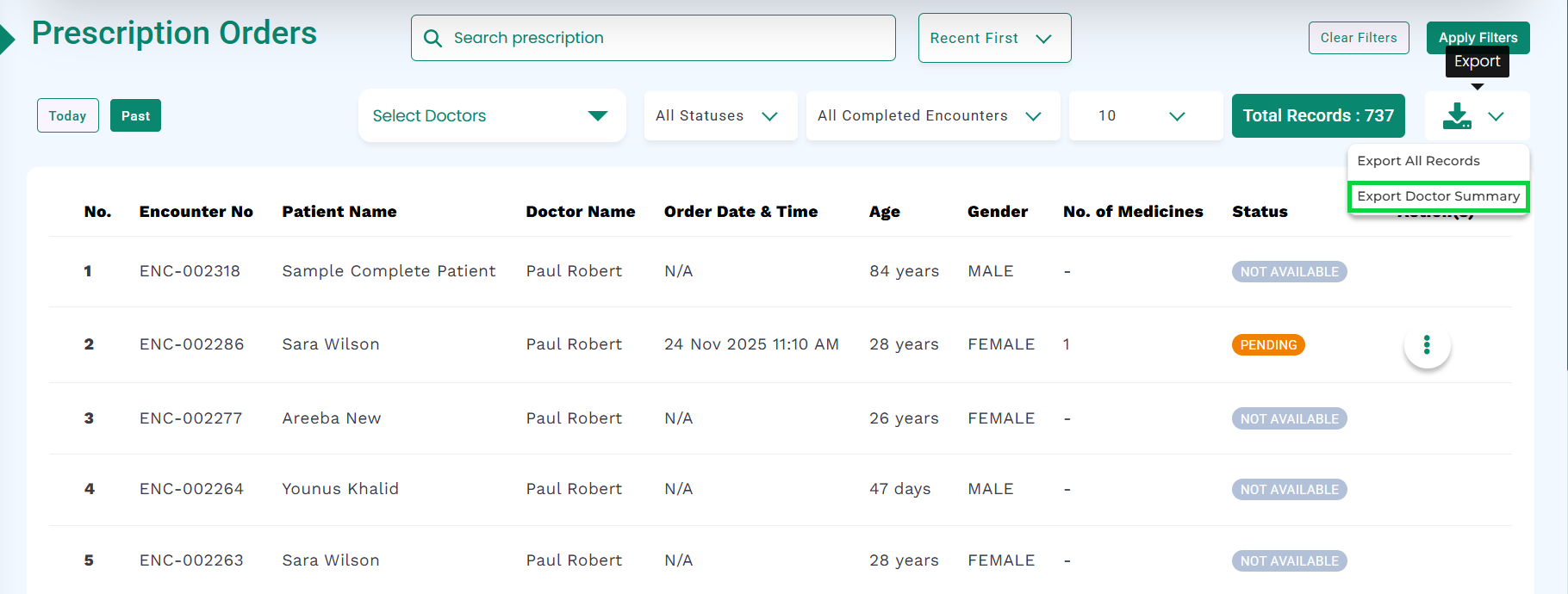
Two export options will be available:
Export All Records
Export Doctor Summary
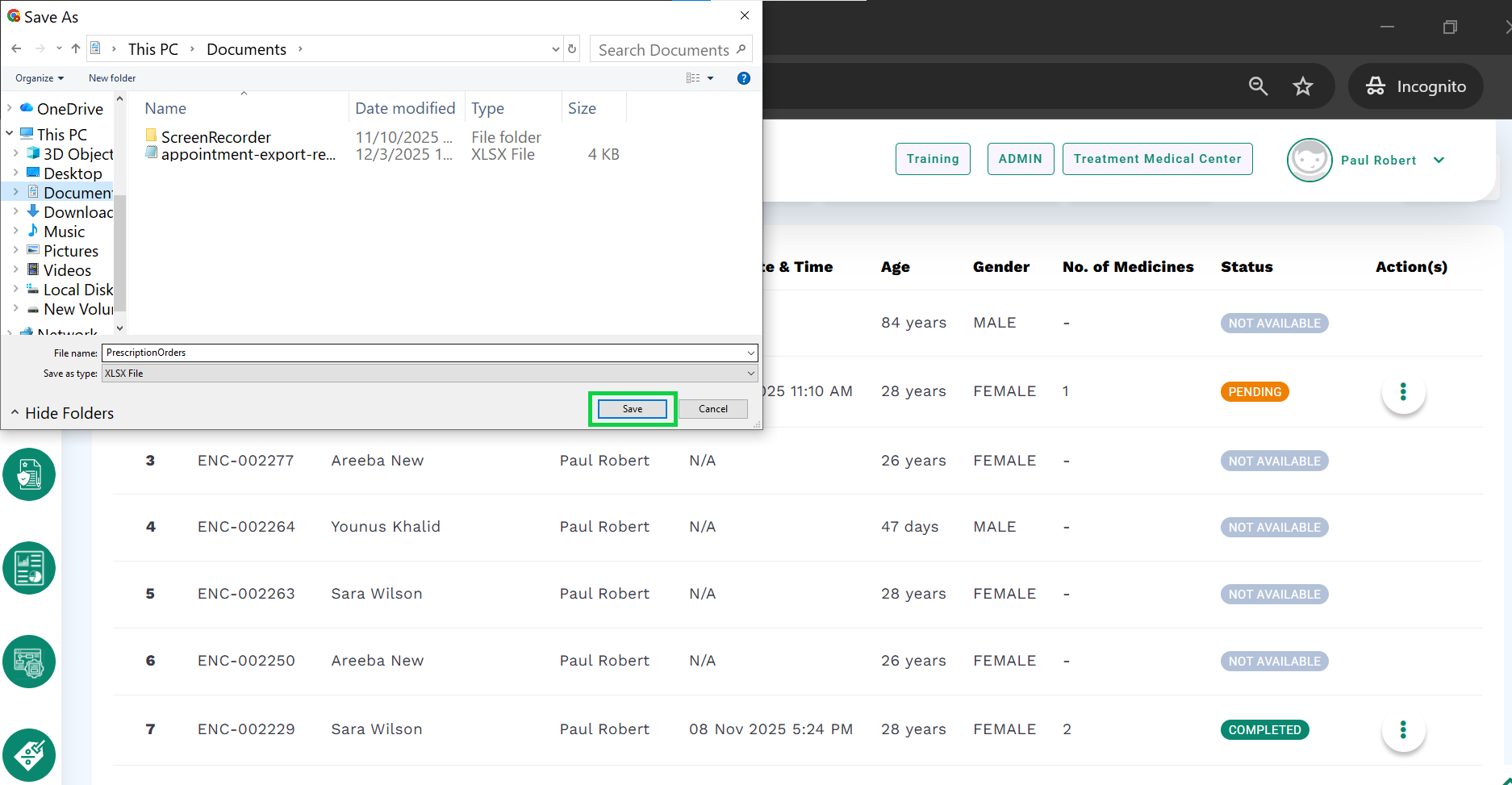
To download the complete records report, click the Export All Records button, as highlighted in the image below.
A download dialog will appear. Click Save to store the file on your system.
Once downloaded, open the file to view the report in an Excel sheet.
The report will display the Encounter Number, Patient Name, Doctor Name, Order Date & Time, Age, Gender, Number of Medicines, and Status, as shown in the image below.
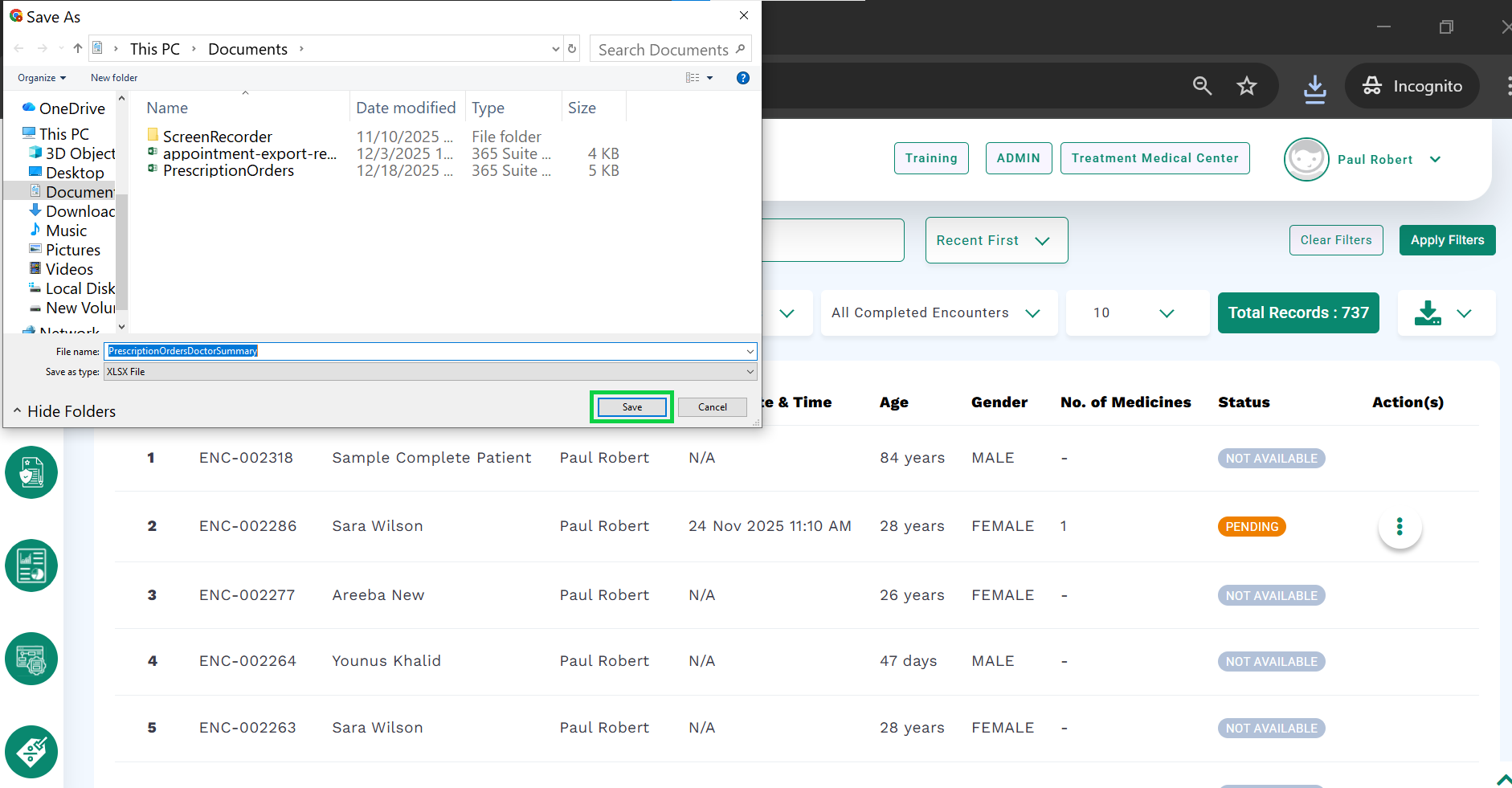
To download the doctors’ summary report, click the Export Doctor Summary button, as highlighted in the image below.
A download dialog will appear. Click Save to store the file on your system.
Once downloaded, open the file to view the report in an Excel sheet.
The report will display the Doctor Name, Number of Patients, Number of Medicines, and Number of Patients having Prescriptions, as shown in the image.