Skip to content
- Go to the Information Leaflets Templates screen as described in the Pre-requisites section.
- From the Actions column, click the Edit icon, as highlighted below.

- The Edit Information Leaflets Template modal will open, as shown in the image.

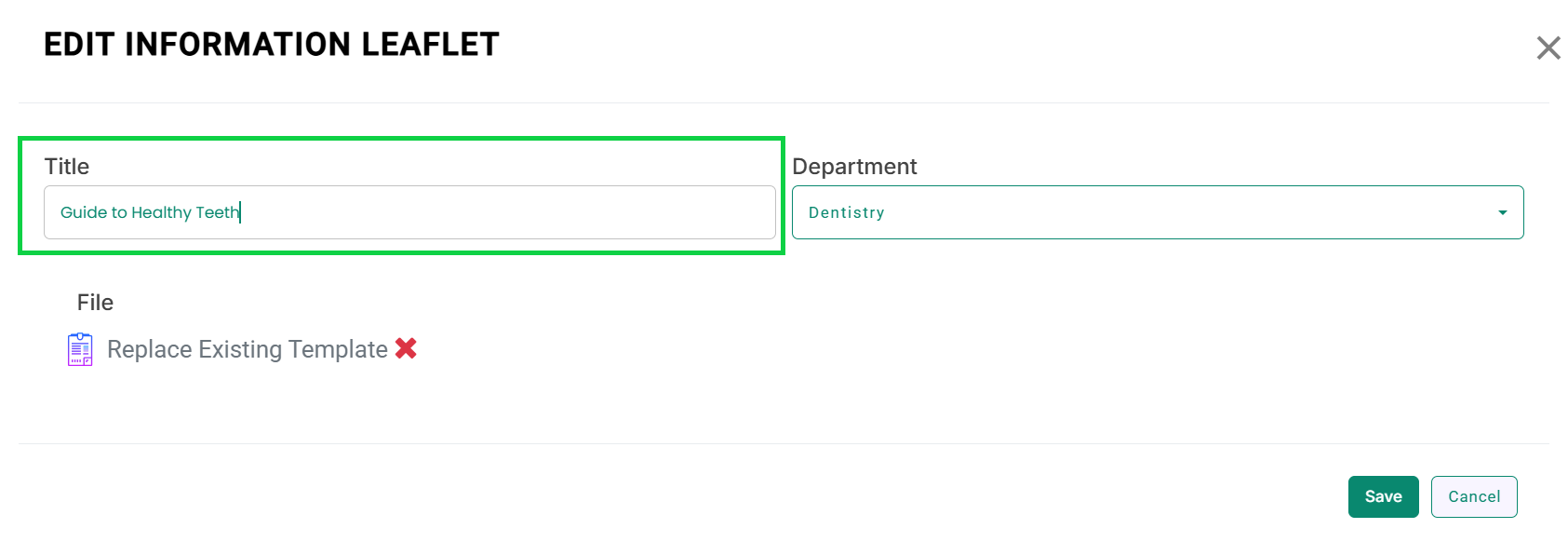
- You can update the Title by editing the text in the Title field, as shown in the image below.
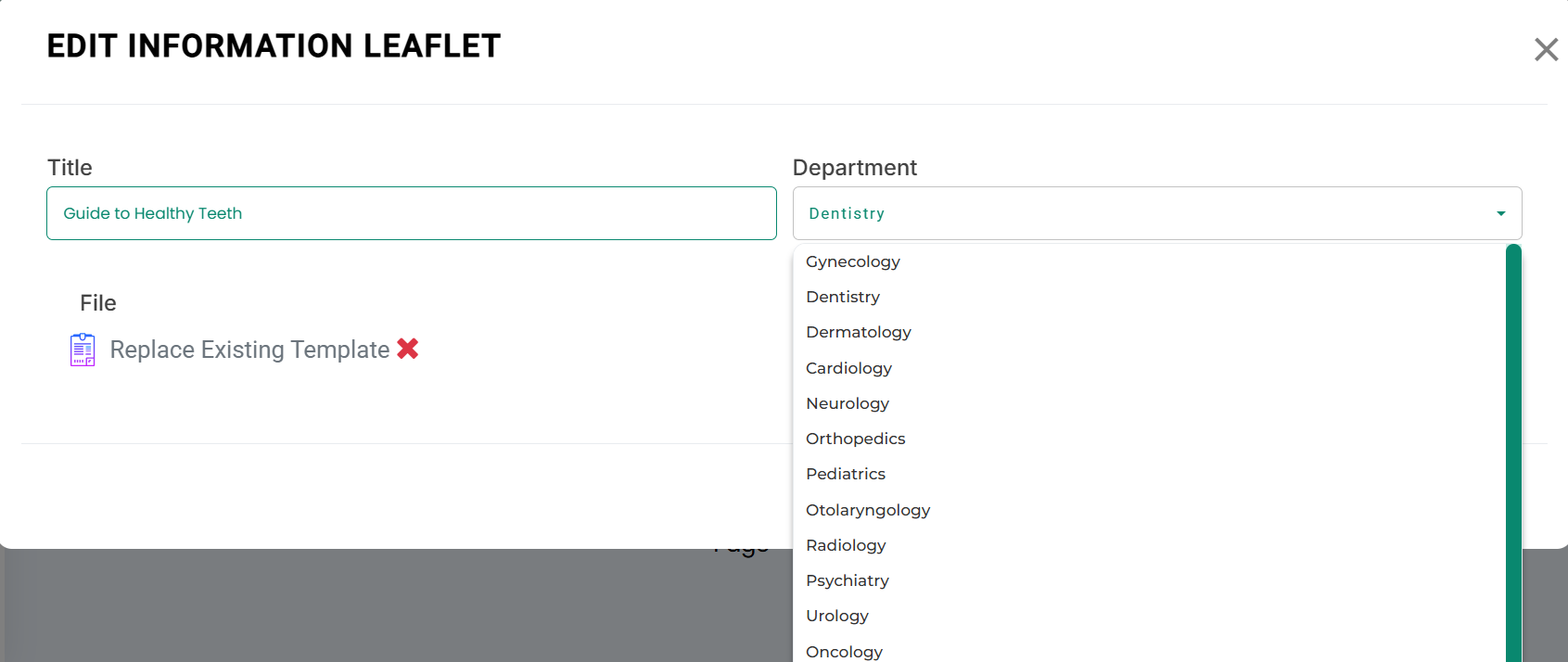
- To change the Department, click the department field and select the appropriate department from the list, as shown in the image below.
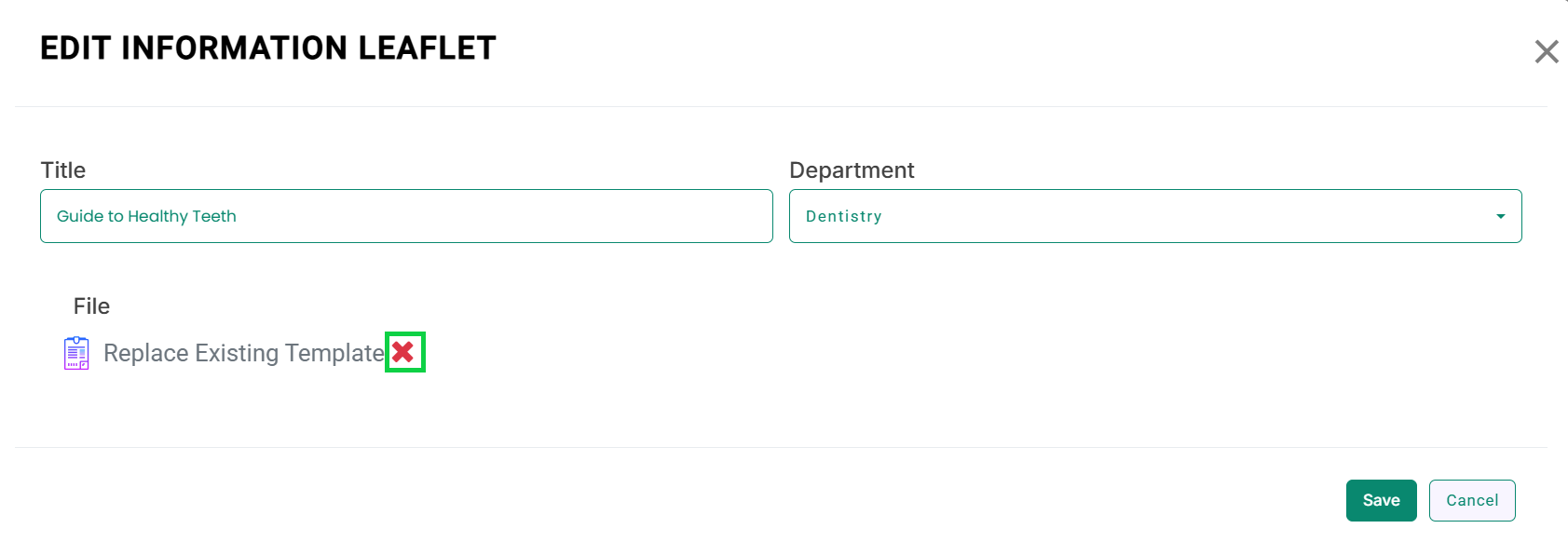
- To replace the existing document file, first remove it by clicking the cross icon next to the file name, as shown in the image below.
- The existing file will be removed, as shown below.
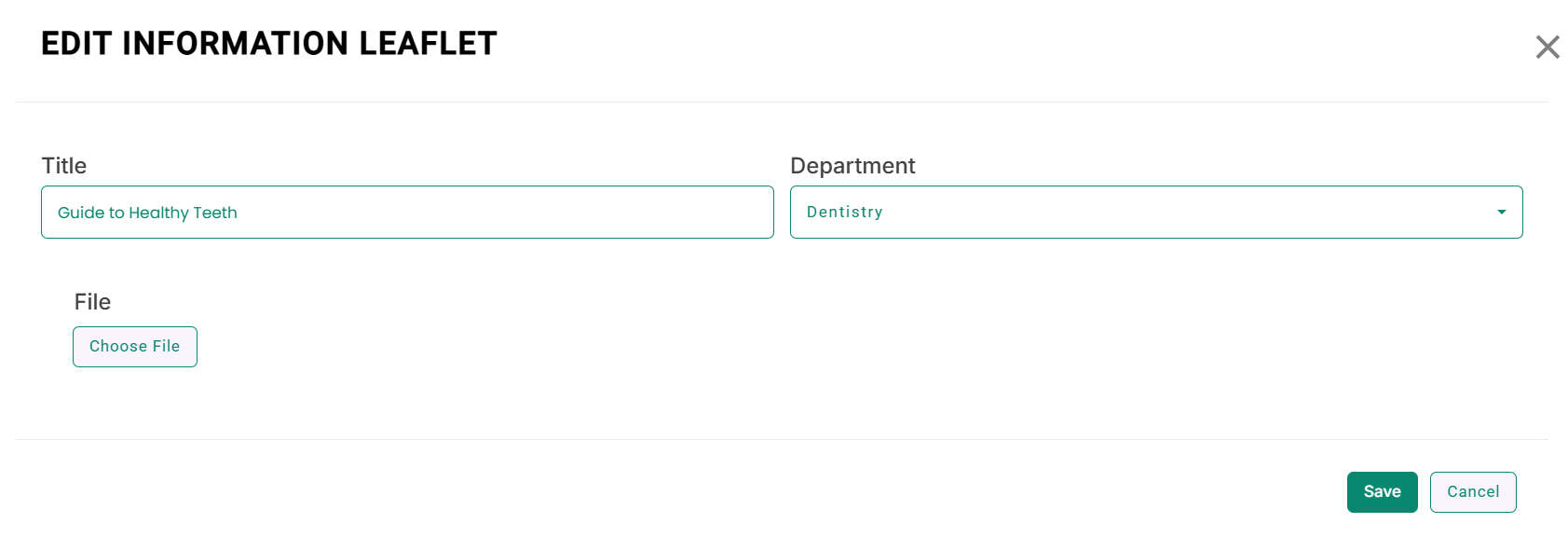
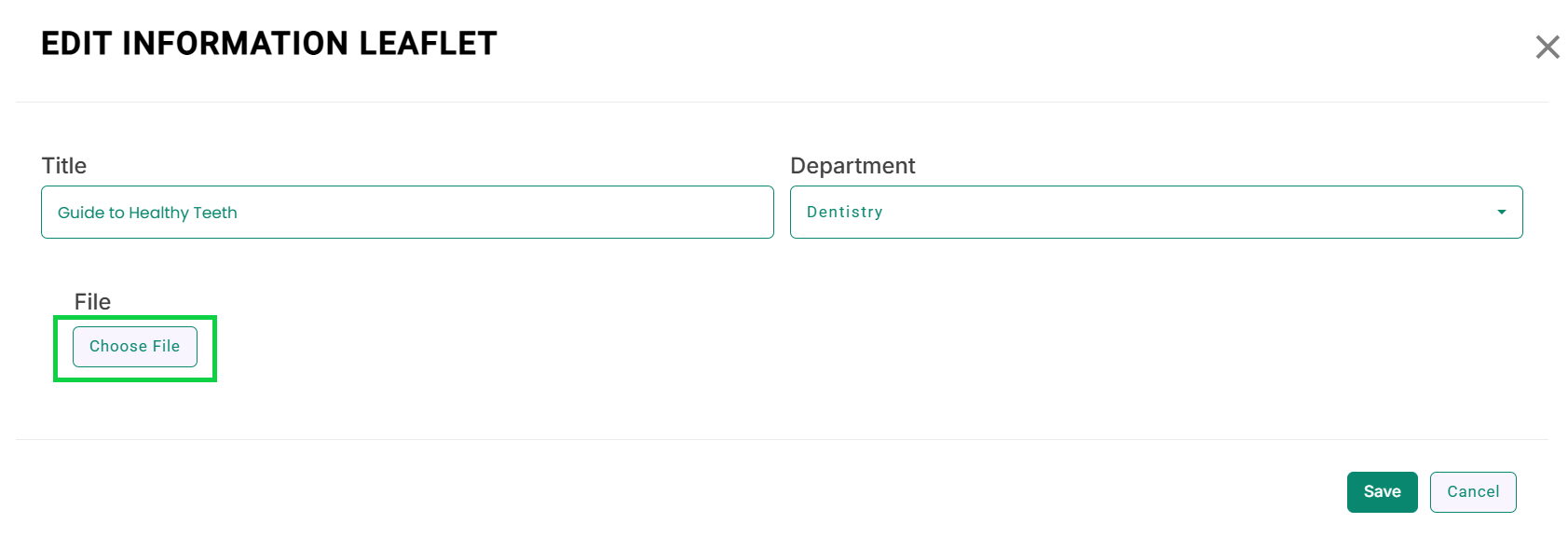
- Click the Choose File button, as highlighted in the image below.
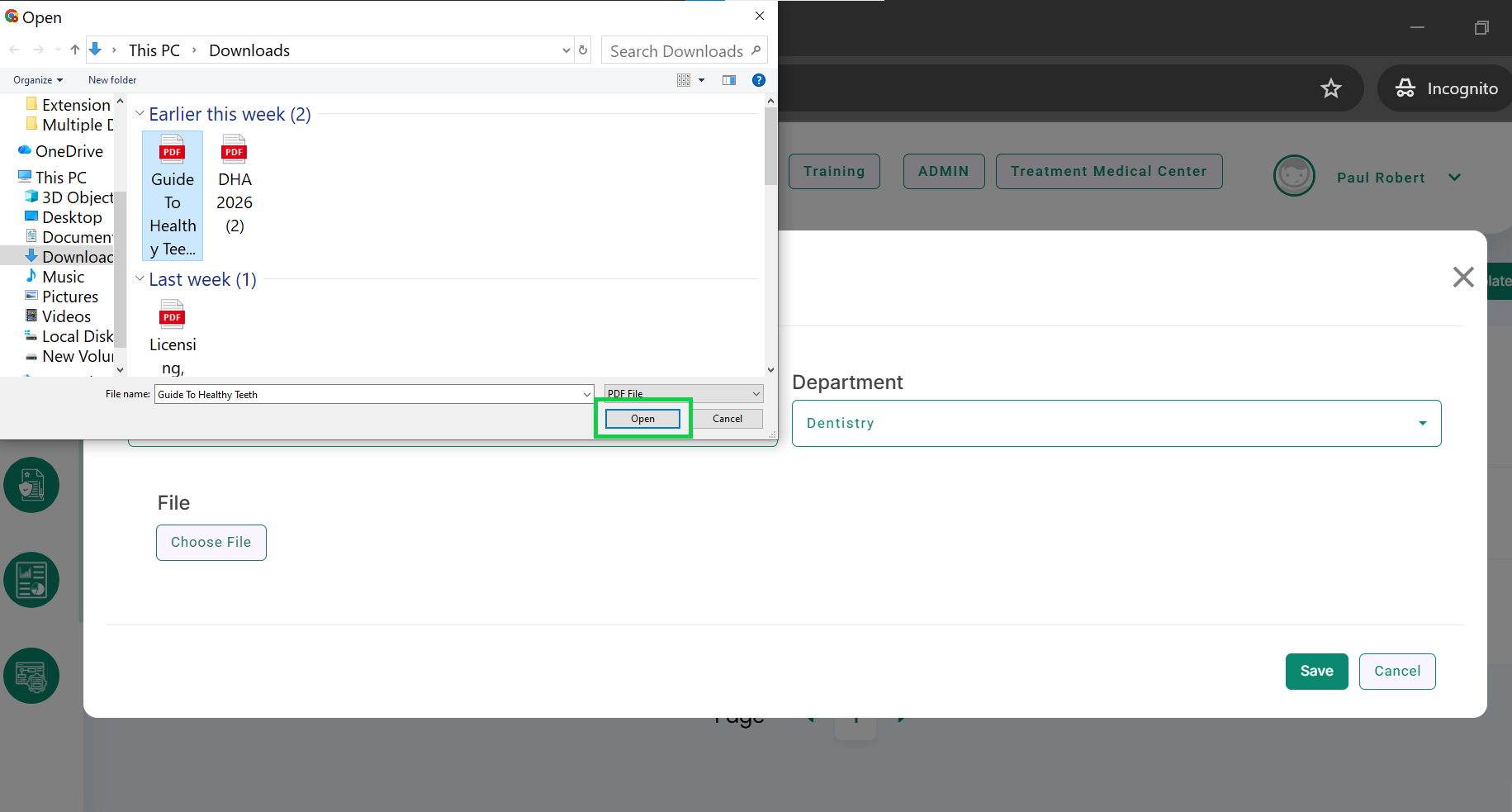
- Select the required file from your system and click the Open button, as highlighted in the image below.
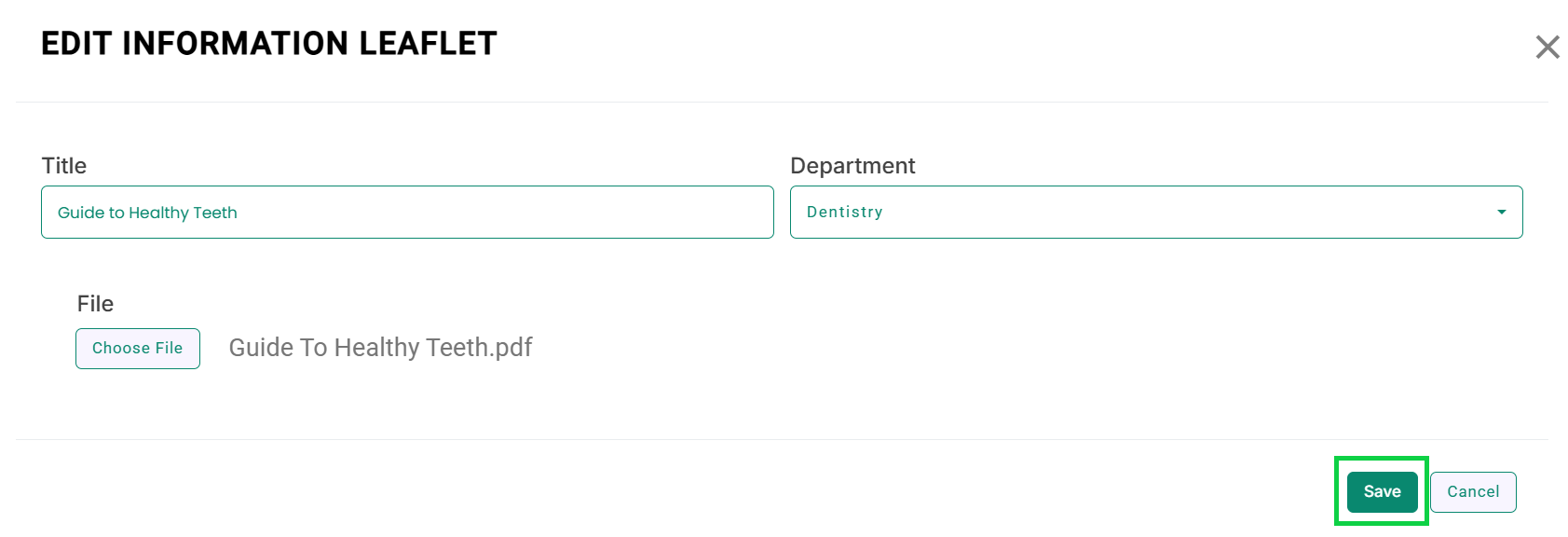
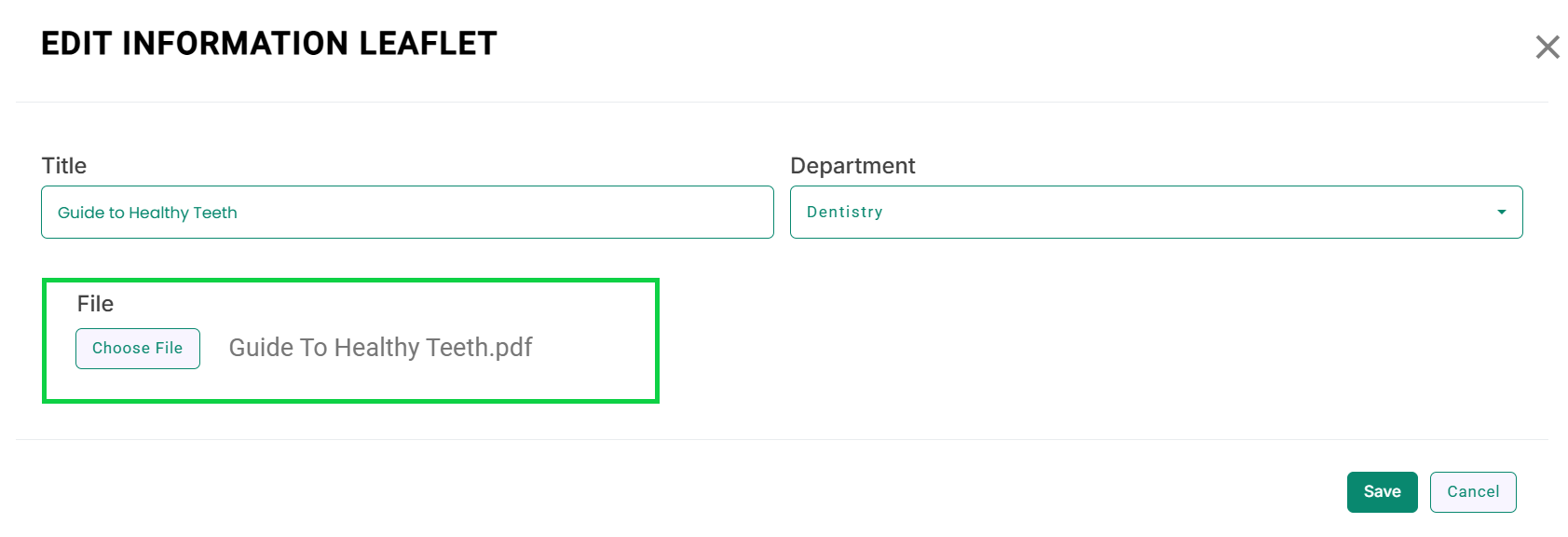
- The new file will be added, as shown in the image.
- Click the Save button highlighted in the below image to apply the changes.