Skip to content
- Go to the Consents section as described in the Pre-requisites.
- Add the consent document to the patient profile as described in the How to add consents in Patient’s Profile section.
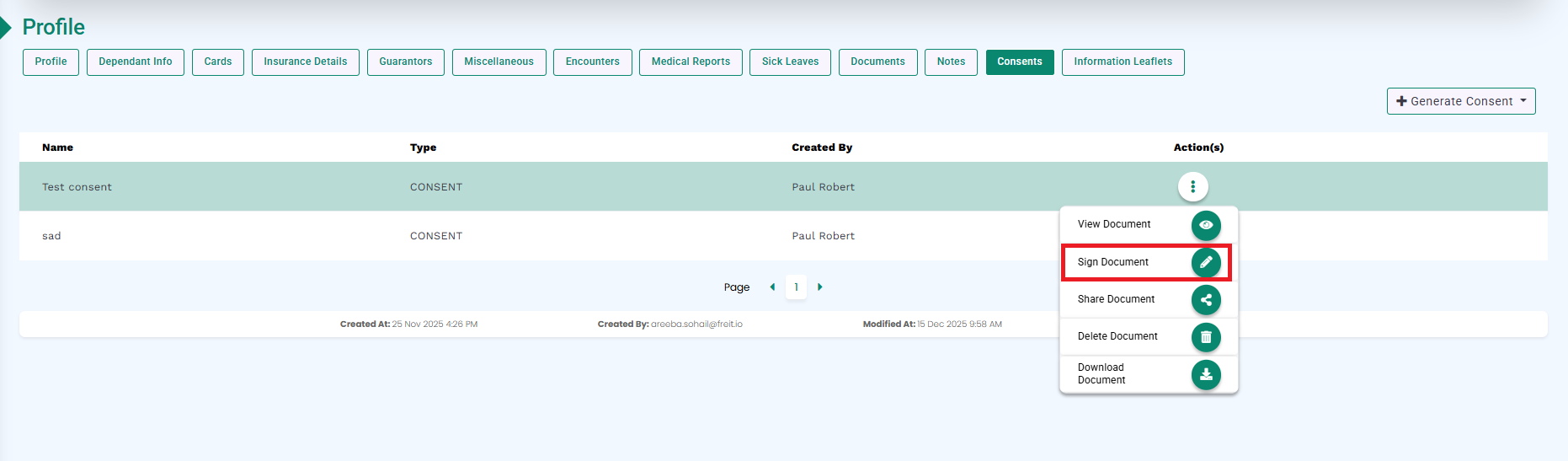
- From the Actions column, select Sign Document, as highlighted in the image below.
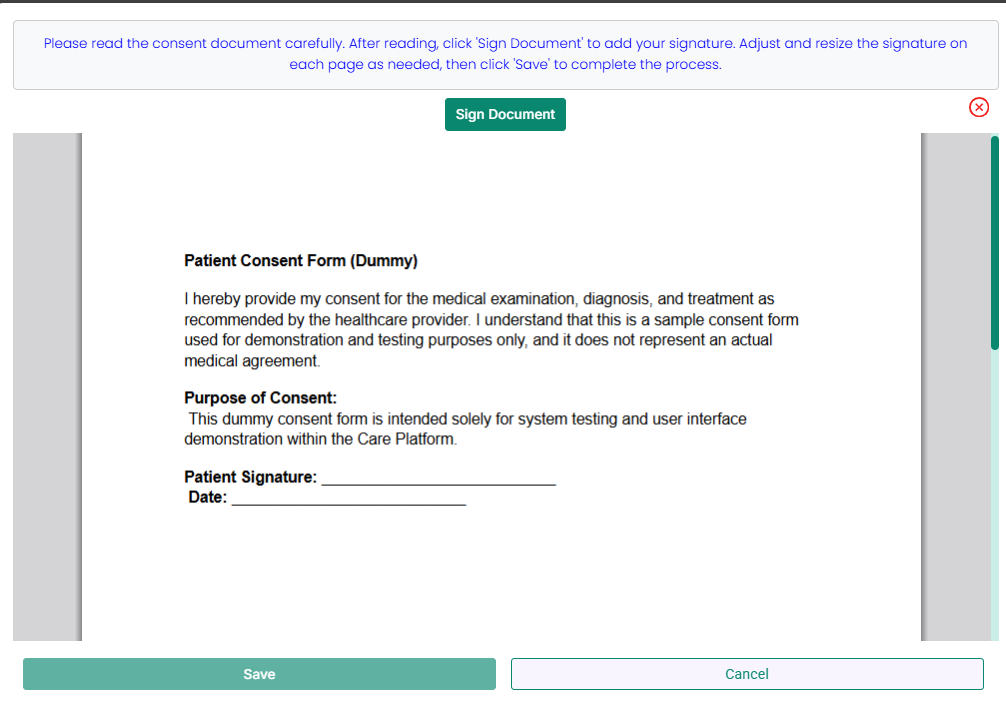
- The uploaded consent document will open.
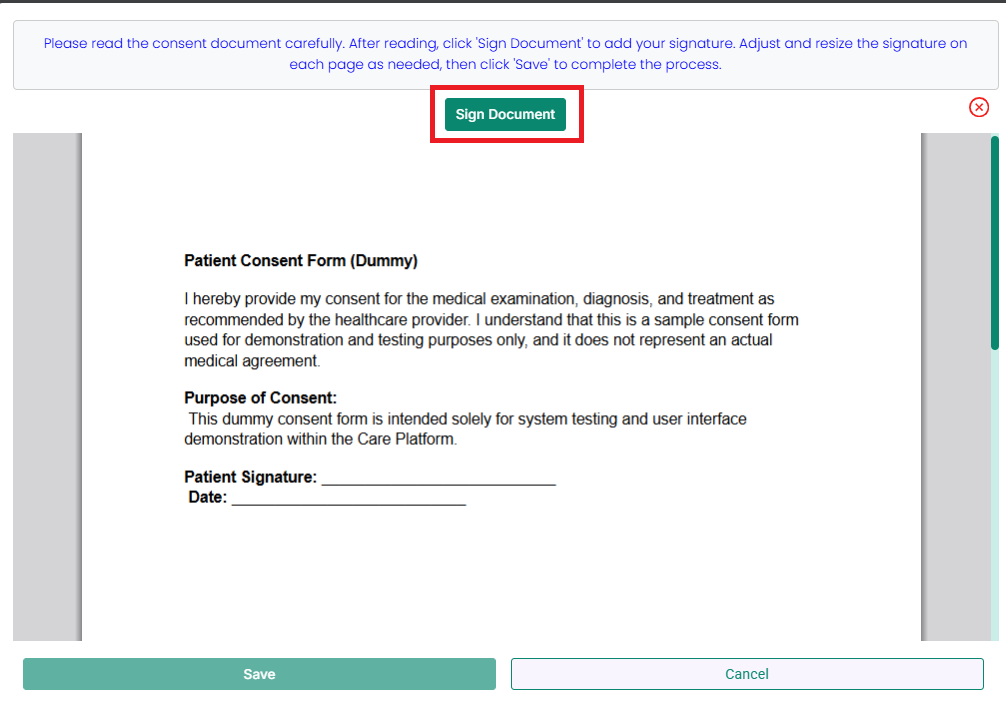
- Click the Sign Document button available at the top-center of the screen, as highlighted in the image below.
- A signature modal will open.
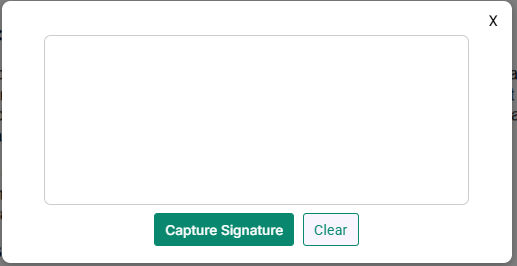
- Capture the patient’s signature using a touchscreen, mouse, or signature pad.
- Click the Capture Signature button, as highlighted in the image below.
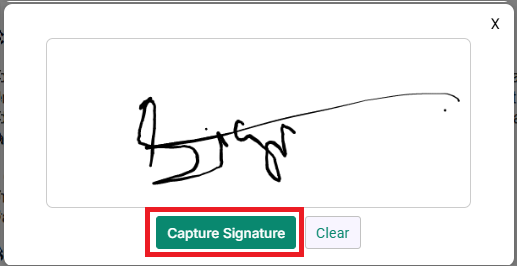
- The signature will appear with a placeholder, as highlighted in the image below.
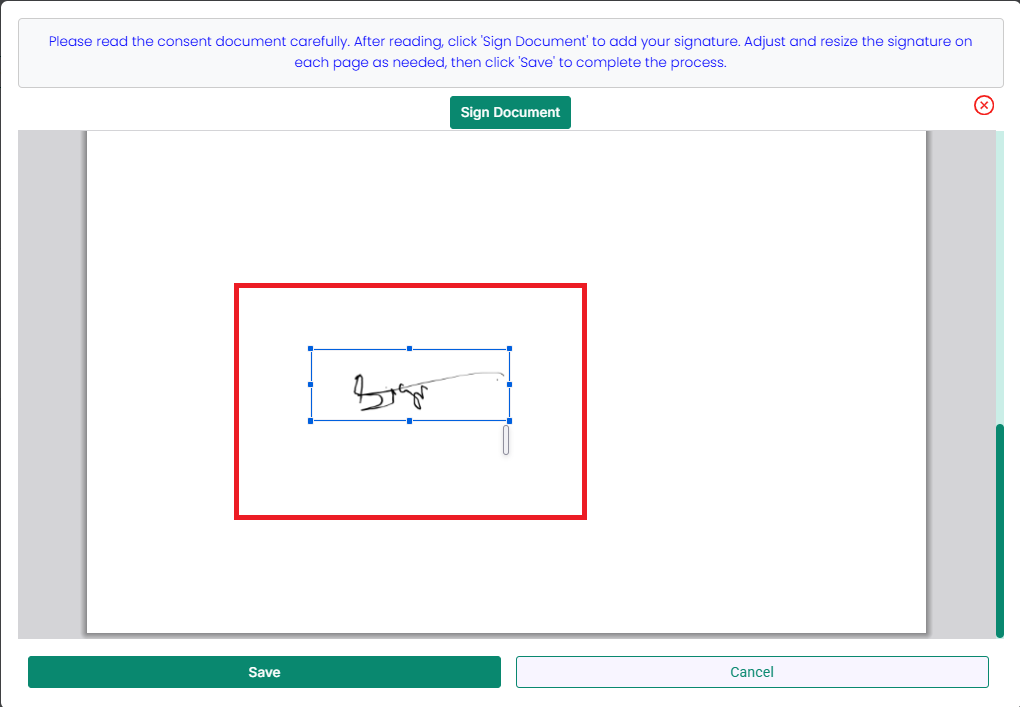
- Drag and drop the signature to the required position on the document.
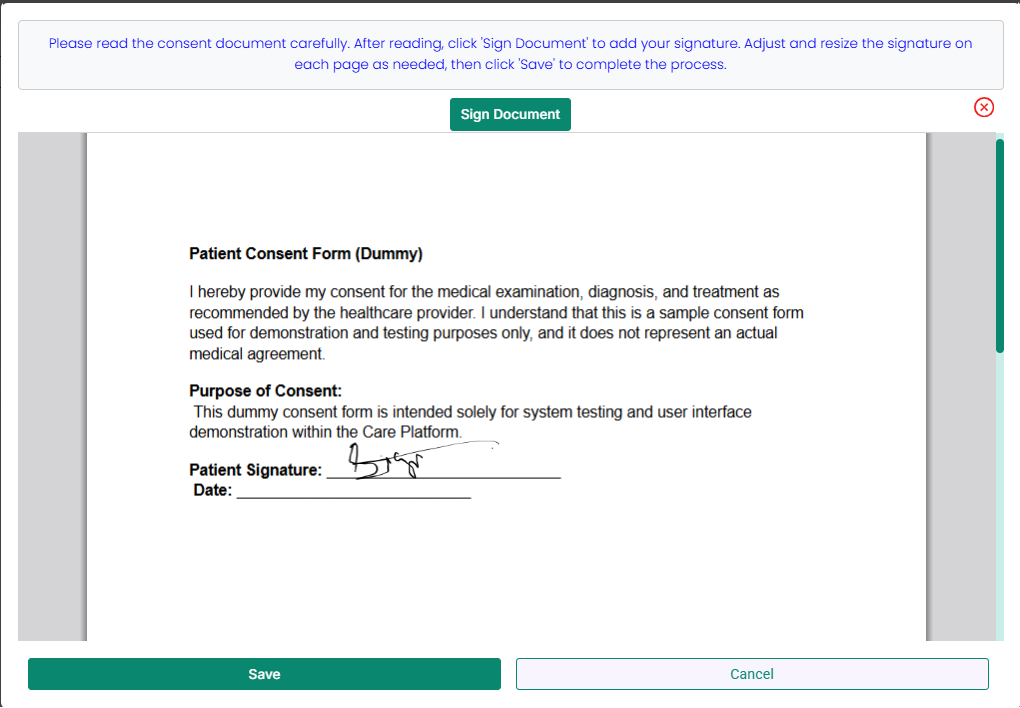
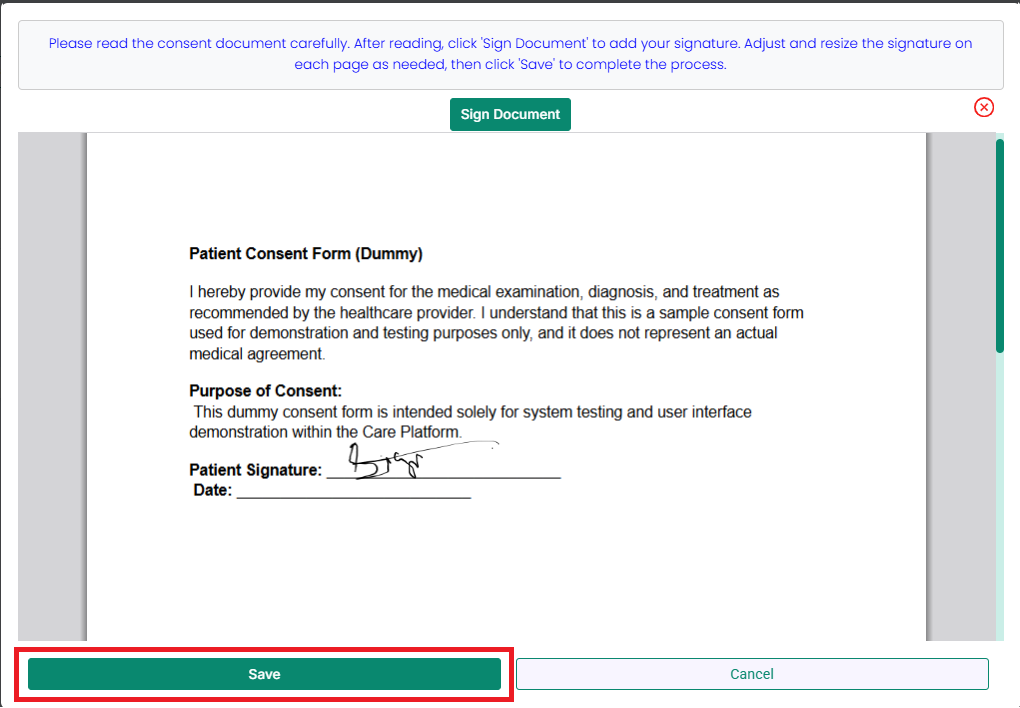
- Click the Save button, as highlighted in the image below.
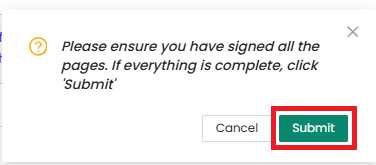
- A confirmation dialog will appear. Click Submit.
- The signed consent document will be saved successfully.
- To view the signed document, select View Document from the Actions column, as highlighted in the image below.
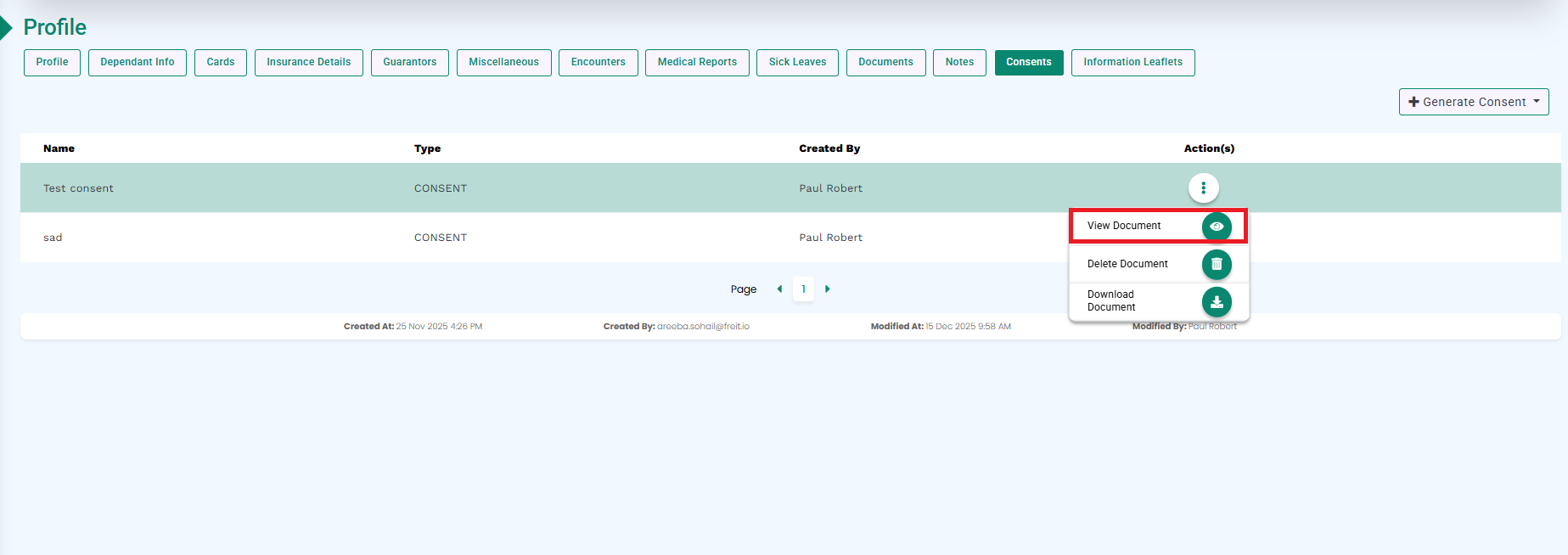
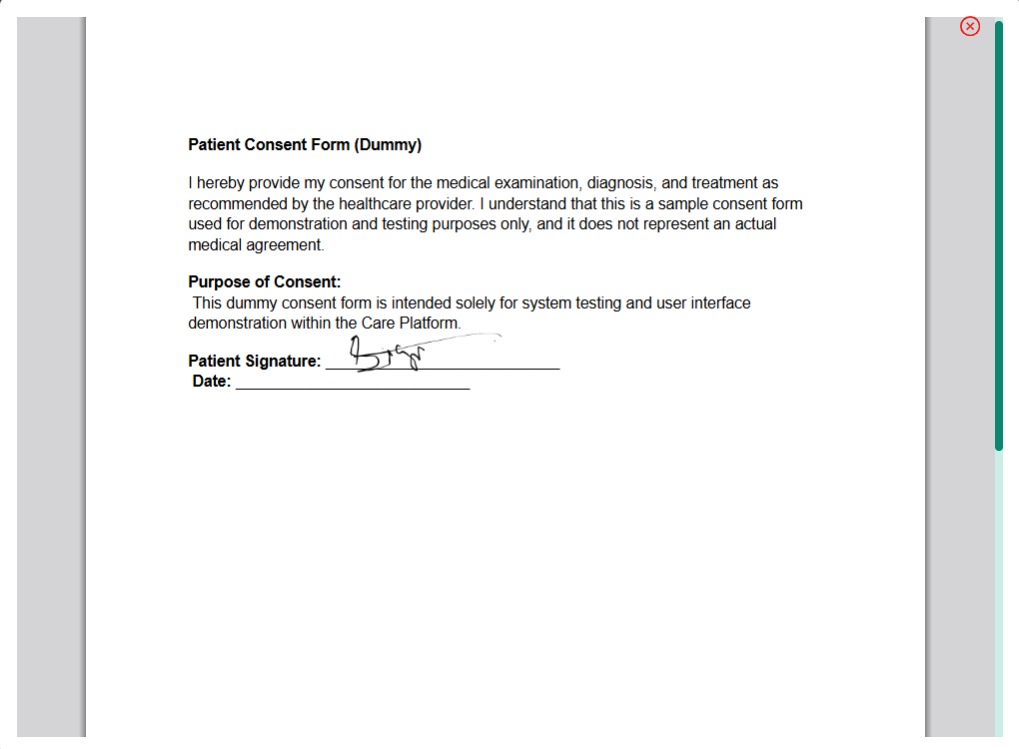
- The signed consent document will be displayed, as shown below.