Skip to content
- As outlined in the Pre-requisites section, click the Edit button.
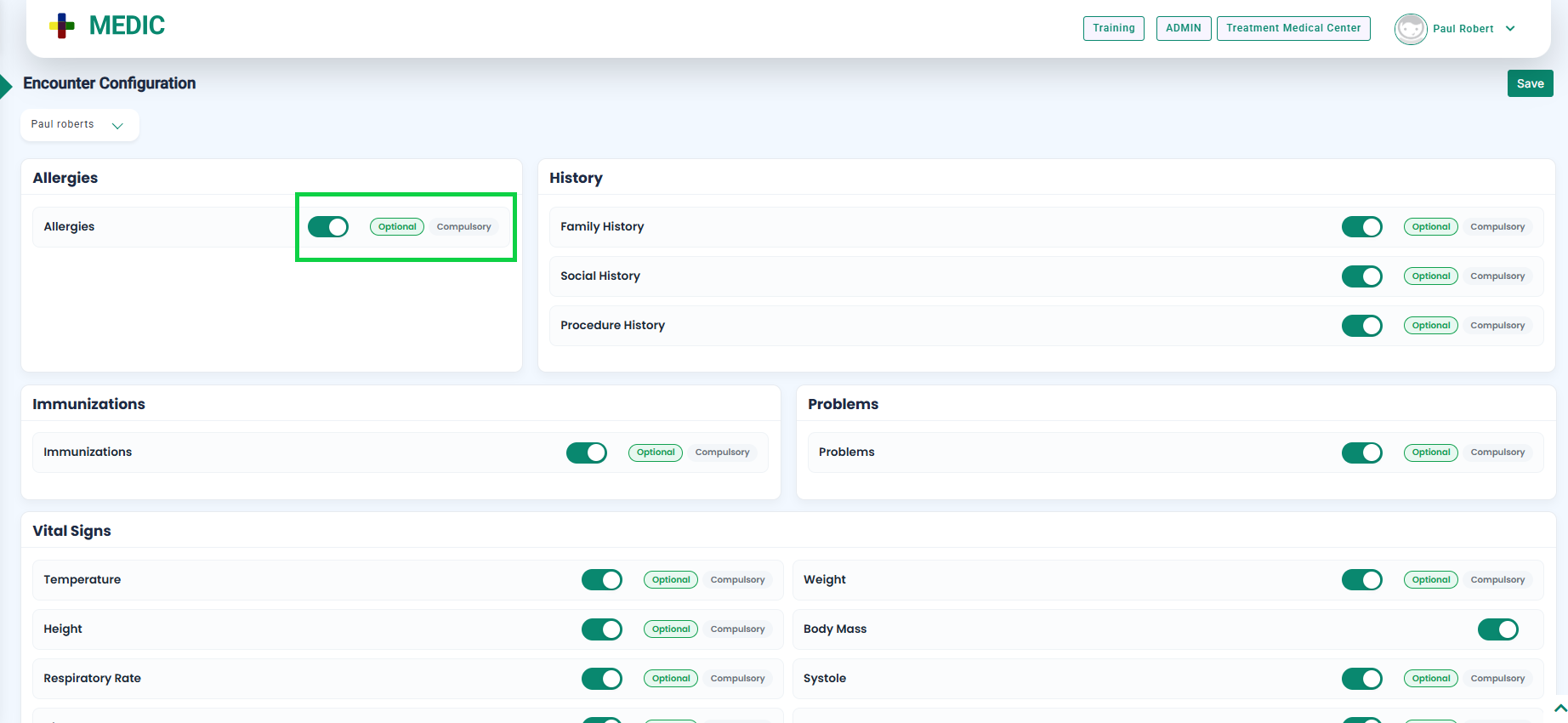
- When you enable any field, two buttons—Optional and Compulsory—will appear next to the field name, as highlighted in the image below.
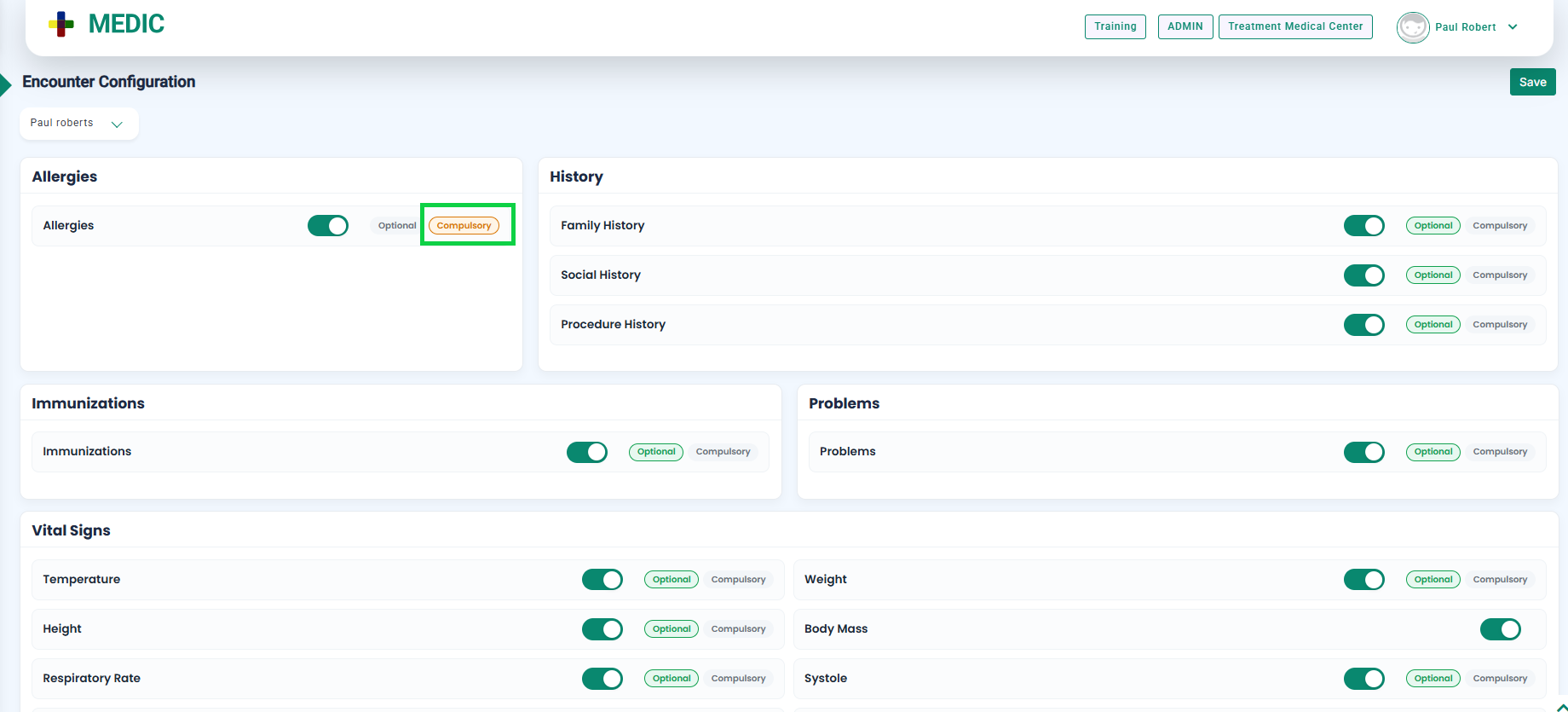
- To make a field Compulsory, click the Compulsory button, as highlighted in the below image.
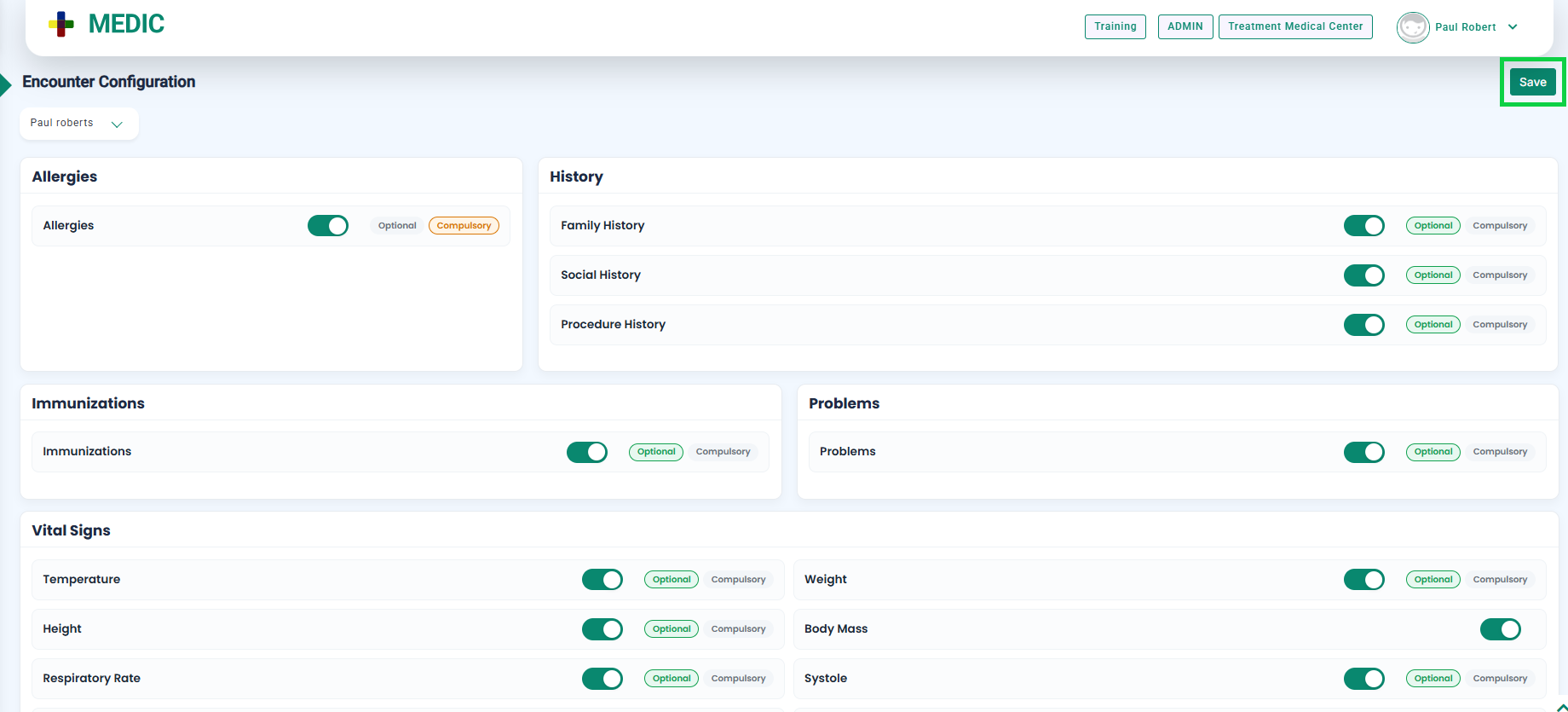
- Once the Compulsory button is clicked, click the Save button located at the top-right corner of the screen, as shown in the image below.
- Once marked as compulsory, the system will not allow the encounter to be ended unless the field is filled.
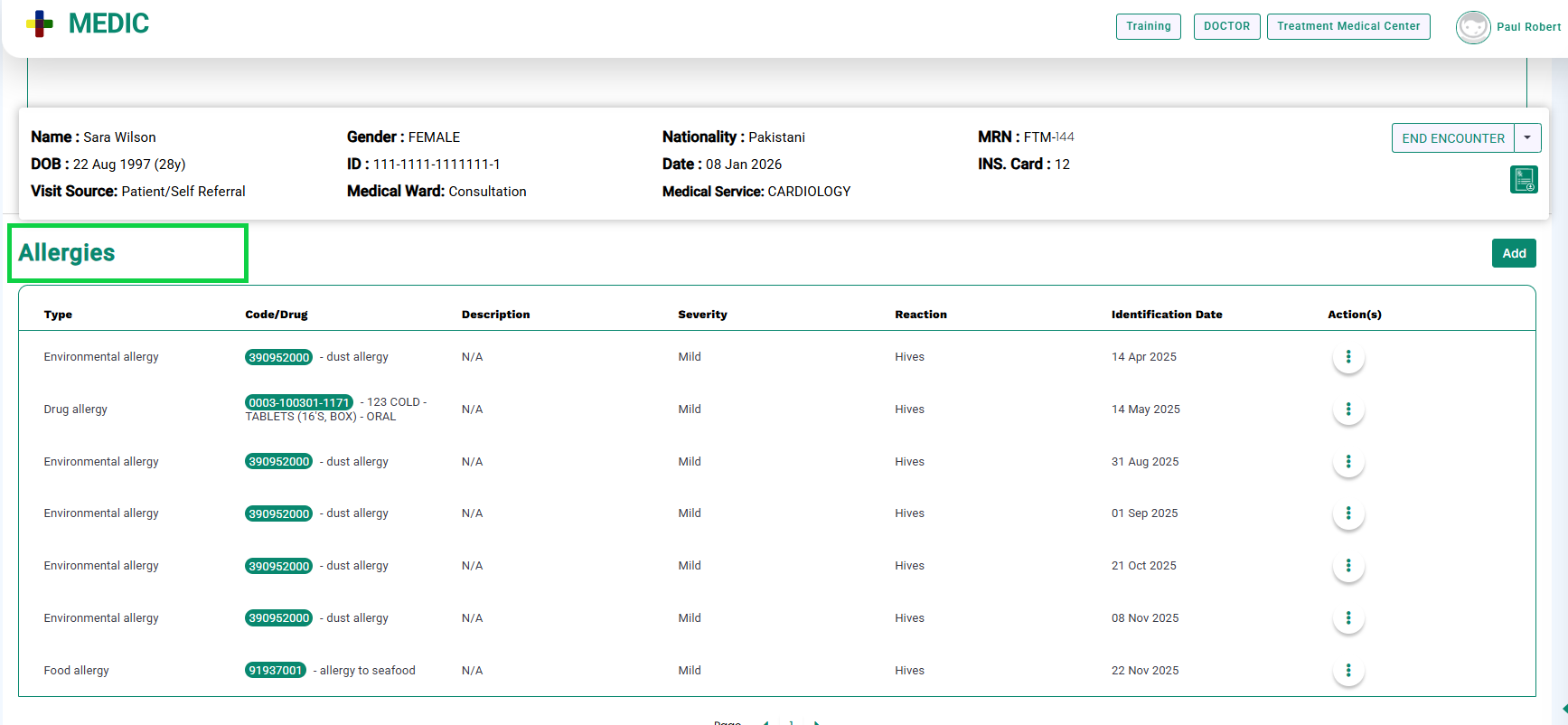
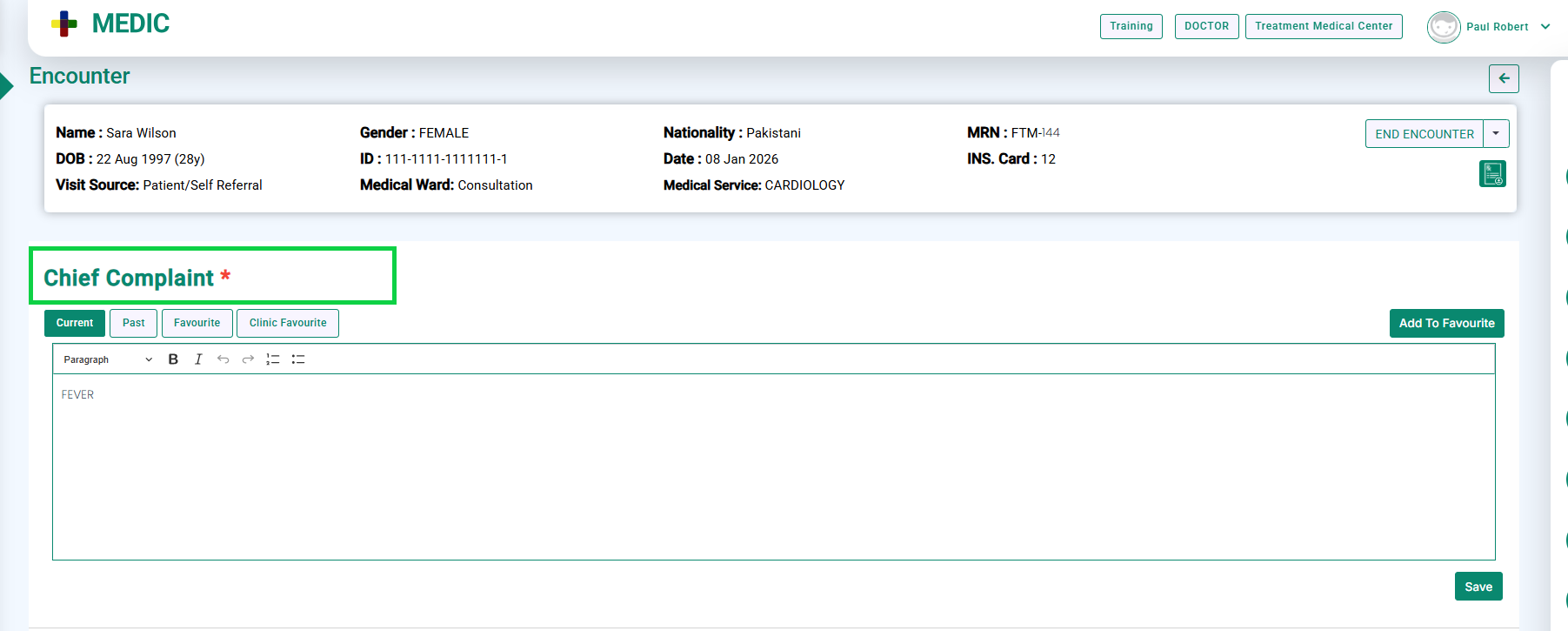
- During the encounter, compulsory fields will be displayed with an asterisk (*), as shown below.
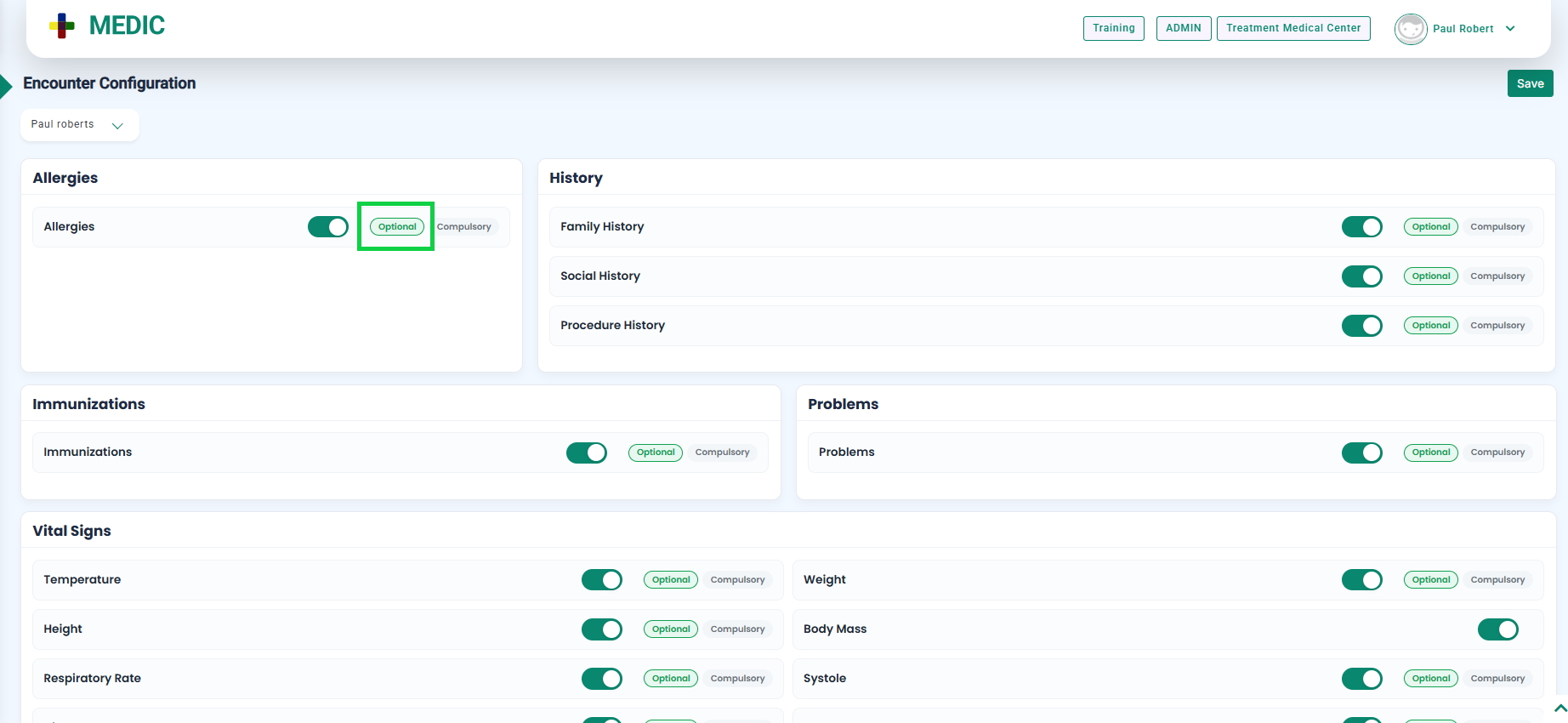
- To make a field Optional, click the Optional button, as highlighted in the below image.
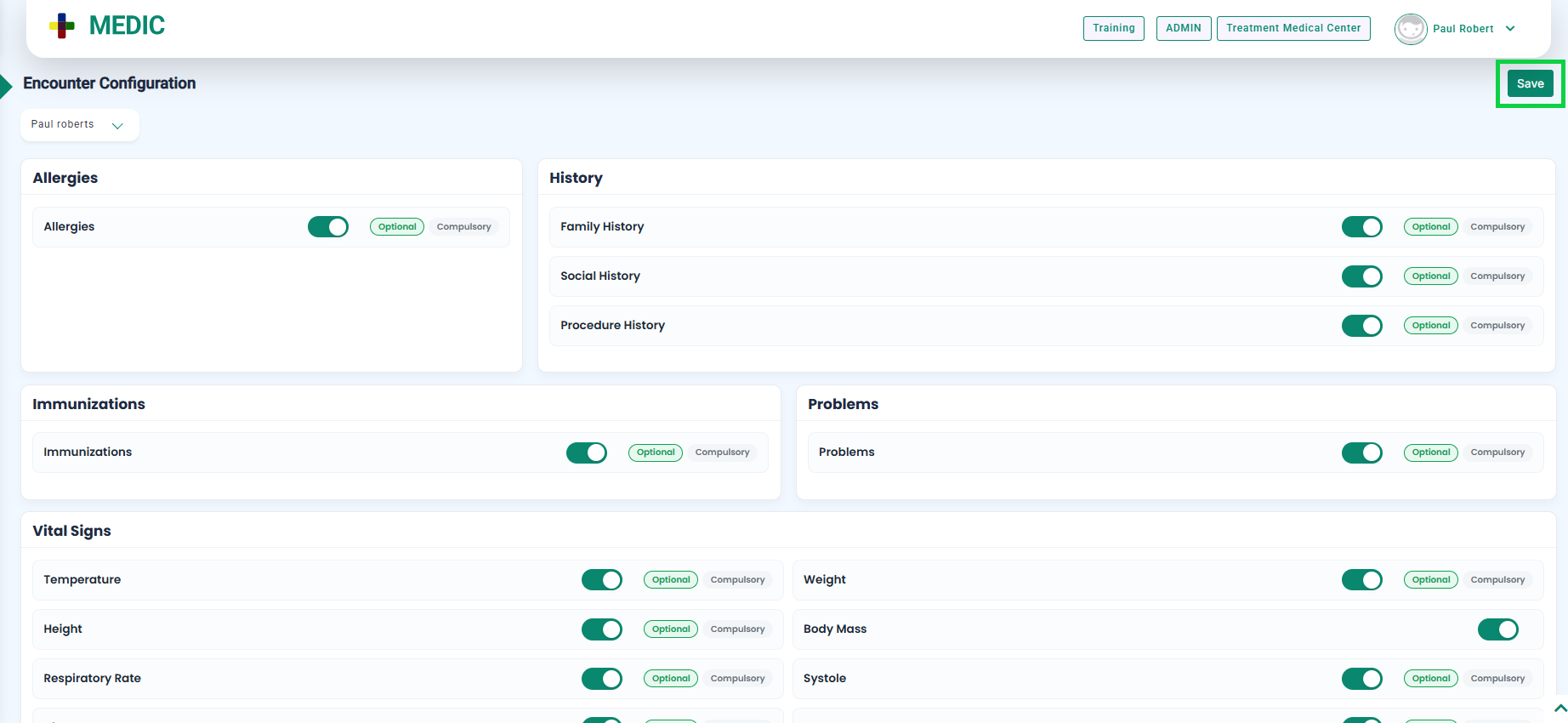
- Once the Optional button is clicked, click the Save button located at the top-right corner of the screen, as shown in the image below.
- When marked as optional, the system will allow the encounter to be ended even if the field is not filled.
- During the encounter, optional fields will not display an asterisk, as shown below.